Thursday, November 18, 2010

Backup and Restore Windows Drivers

A few weeks back I wrote about a program that could backup drivers. Well that created a flood of emails – You all told me about your favorite driver backup program. One that stood out was Double Driver.

You can get it from here:

http://www.boozet.org/download.htm

The application is simple, but powerful. Download and launch it:

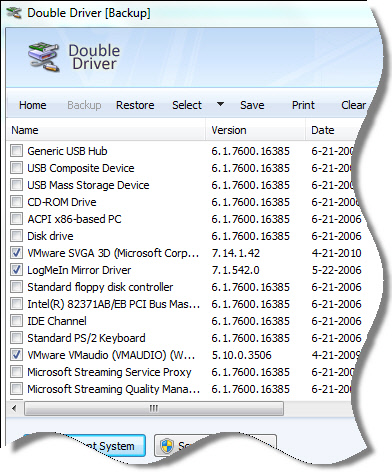
Click on Backup, and then “Scan Current System”. It will grab all of your current drivers.

Select all of the drivers you want to include, and press “Backup Now”

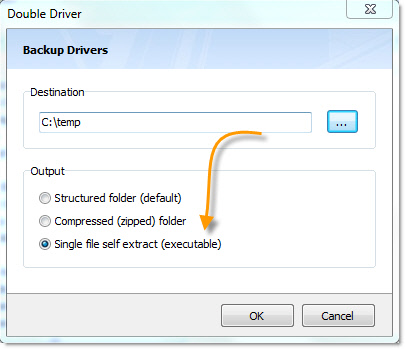
Pick your option for backup:

I like the self extracting exe – very easy to handle when I am in the middle of a format and reload.

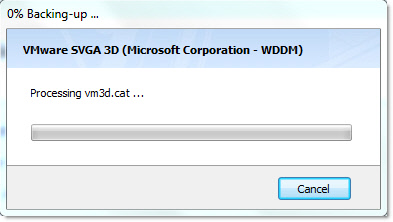
It will then quickly build your driver backup:

Best of all this utility is free, and can run right from a flash drive.

Extend Windows Server 2003 C Drive

Sooner or later the chances of encountering a Windows based system that is exhausting its free space on C: are pretty good. After years of Windows patching, application updates, etc, even a system that started with a healthy amount of free space on C: can find itself running low. If you happen to be in a virtualized environment you have some good, semi non-disruptive options to resolve this issue.

In the "old days" when the C drive was carved out of physical disk, the only option was to backup the system, repartition, reformat, reinstall, and restore the system(maybe there are/were some advanced partitioning managers that could do this much more simply?). A very lengthy, disruptive and risky operation. With the advent of Windows 7 and Server 2008 R2 (maybe Vista/Server 2008?) Microsoft built in the very handy feature of extending the C: drive live while the system is running - very cool indeed! As long as you have some available space to add, it is a zero downtime operation on those operating systems.

Back to Windows 2000 and 2003. I recently had some Server 2003 virtual machines that have been in service long enough to start running low on C drive space. All the (conservative) cleanup I could muster wasn't going recover enough space for the long haul. If you turn to Google you'll find several ways to accomplish extending the C drive - here I offer what I though was one of the most straight forward and conservative(safe) methods in a VMware environment.

Preparation Steps
  • Get a good backup of the system to be modified (you already regularly do this though - right?)
  • Have a "Helper" Windows 2003 or newer virtual machine you can power on / off without disrupting user services. This system will need access to the vmdk to be extended.
  • Make sure you have free disk space on the vmfs/nas volume to extend your C drive.
  • Downtime required - although minimal it must be planned accordingly
HowTo
  • Backup, Backup, Backup the original system
  • Shutdown the original System
  • Edit the Virtual Machine's properties and adjust the disk size to the total desired capacity
  • In the Helper Virtual Machine
  • Add the existing, newly extended drive as a new hard drive device
  • Boot up the Helper Virtual Machine
  • Fire up diskpart, execute list volume
  • Execute select volume # where # is the volume number to be extended
  • Execute extend, then exit
  • Shutdown the Helper Virtual Machine and remove the disk device configuration from it (but don't delete the VMDK!)
  • Boot up the original system
  • You may see a checkdisk run - this is OK
  • You may get the "New hardware install please reboot" prompt, go ahead and reboot
  • The system will now have a larger C drive!
This method appealed to me for following key reasons:
  1. Uses Windows native tools to modify Windows partitions.
  2. No copying of data from one disk to another.
  3. It's relatively quick. This can manually be done in around 15 minutes(excluding the backup time).
One potential downside stems from a VMware technical matter. For those who might think: "I'll take a snapshot of my virtual machine before messing with its disk size", you'll quickly notice the VMDK size can not be altered when a snapshot is present. If you are looking to the concept of "Snapshot" as a quick fall-back option, you'll have to get that from your storage or backup solution.

If all failed, you can also use the Gparted Live CD to boot up and configure the hard drive partition (extend, delete, configure, etc.)
http://gparted.sourceforge.net/download.php

Export users from Active Directory – Free Tool

I have an Active Directory Domain that has lots of user accounts, under many organizational units. I wanted to find an easy way to see all of the user accounts within the domain.

My friend Matt told me about this free tool called DumpSec from SystemTools.com

When you first launch the app it defaults to the local system (You can use this tool for local computer security info too btw). I wanted it to export information about the domain, so I had to change it to look at the domain controller instead.

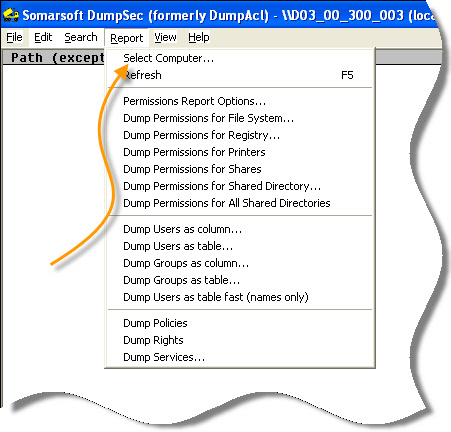
You can do this by clicking on the reports menu within the app, and the pick then option that says “Select Computer”

Select Computer

Then type in the host name of one of your domain controllers.

Once it is connected, you can click that reports tab again and pick what you want to export. It can export:

-File system permissions
-Registry permissions
-Printer permissions
-Share permissions
-A shared directories permissions
-All shared directories permissions
-Groups
-Users
-Policies
-Rights
-Servers

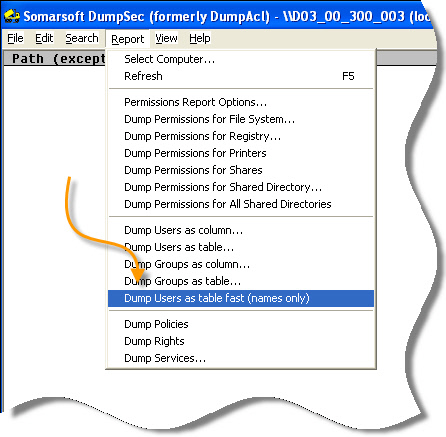
For me, I just needed a current list of users. I picked the fast option:

Dump Users

Within a few seconds I had a complete list of users on my domain, and the program allowed me to easily save it to a text file.

A great free tool – if you need to audit permissions on your domain I highly recommend it.

Download a copy of it from here:

SystemTools.Com DumpSec Download

Sunday, August 15, 2010

Shutdown Timer

Shutdown Timer


What is Shutdown Timer?

Shutdown Timer is a utlity that will allow you to perform certain actions relating to shutting down the system. The user interface is easy to use and understand and you should be able to get to grips with it.


What are the main features of Shutdown Timer?

Ability to:

  • Shutdown
  • Restart
  • Logoff
  • Lock
  • Hibernate
  • Standy
  • Monitor Standby
  • Open a file
  • Open a Web Page
  • Based on Date & Time
  • CPU/Memory Utilisation
  • CPU Temperature
  • Networking Usage
  • Process Management
  • Ability to save your settings for future use
  • Completely Portable, You can take it on a USB if you want to!

What if an update comes out, would I need to come back here to download?

No you won't need to do that, we offer a dedicated update server for recieving the latest updates right to your desktop!

Better yet, we'll soon be rolling out new update servers that are nearer to your location so you can get the fastest possible transfers.


Where can I download it?

You can get the Shutdown Timer from the top of the sidebar or directly through here: (32 Bit) | (64 Bit)

Monday, July 19, 2010

VMware ESX 4.0 Disk Layout

esx4-1

After having just sat the vSphere “What’s New” course, I have the itch to start writing again! As many of you may already be aware, vSphere has some slick new features and I am excited to start writing again about these new topics as well as Microsoft Hyper-V R2 and Citrix XenServer! Now for the post!

One area that was not really covered in the course was “what are the best practices for partitioning vSphere”. Things are very different now, unlike in previous versions, the COS is now a vmdk file and runs on a VMFS volume. Just in case you were wondering, the COS VMDK is stored on the local VMFS volume by default in the following location: esxconsole-/esxconsole.vmdk. As you would imagine, this will definitely alter the way that you partition your disk, if you are installing from scratch. To install from scratch, the best practice is to partition as follows:

Note: You cannot define the sizes for /boot, vmkcore, or vmfs partitions using manual or graphical installation. Only using a scripted method can you define these values

Required:

Mount Point Size Notes
/(root) 5120 MB This is the VMware recommended value
swap 1600 MB This is the maximum value. Minimum value is 600 MB
/boot 1.25 GB This mount point is automatically created and included both /boot and vmkcore partitions. The /boot partition requires 1100 MB of this value
VMFS 1200 MB This mount point is automatically created and includes the COS vmdk named esxconsole.vmdk
/var/log 4096 MB Created by default during manual installation. VMware recommends a minimum of 2000 MB
/home 2048 MB VMware recommends 512 MB
/opt 2048 MB VMware does not have any recommendation for /opt
/tmp 2048 MB VMware recommends 1024 MB

So there you have it. Somewhat similar to what we’ve seen in the past, however with a twist in that the COS is now a VMDK!

Windows 2008 Core Commands

So you installed Server 2008 Core And here’s what you’ve got:

core

Well now what? To start, check out the commands below:

Show NICs
netsh interface ipv4 show interfaces

Show NIC Configuration
netsh interface ipv4 show config

Configure Static IP
netsh interface ipv4 set address name=”2” source=static address=xxx.xxx.xxx.xxx mask=xxx.xxx.xxx.xxx gateway xxx.xxx.xxx.xxx

Add Primary DNS
netsh interface ipv4 add dnsserver name=”2” address=xxx.xxx.xxx.xxx index=1

Add Secondary DNS
netsh interface ipv4 add dnsserver name=”2” address=xxx.xxx.xxx.xxx index=2

Rename server
netdom renamecomputer oldname /NewName:newname

Add to Domain
netdom join servername /domain:domainname /userd:domain\username
/passwordd:*

Activate the Server
cscript slmgr.vbs –ato

Enable Remote Desktop for Administration
cscript scregedit.wsf /AR 0

Allow Remote Admin through Firewall
netsh advfirewall Firewall set rule group=”Remote Administration” new enable=yes

Restart server
shutdown /r t 0

Disable Interface
netsh interface set interface “Local Area Connection 2” disabled
Delete DNS entries
netsh interface delete dnsserver name=”2” address=all

Sunday, June 27, 2010

6 Ways To Sync Your iPod To Computer Without iTunes

6 Ways To Sync Your iPod To Computer Without iTunes


There has always been one universal constant for purchasers of an iPod – that they would be using Apple’s iTunes to sync it. Apple’s iTunes has been downloaded millions of times and is adored by many, but what if you’re looking for an alternative?

Last year, we covered a similar topic entitled 6 Ways To Sync Music To Your iPhone Without iTunes. The article was very popular and it covered 6 great applications. There has since been many capable alternatives to iTunes, each program having its own pros and cons.

In this article, I am going to cover some of the best free alternatives to using iTunes to sync iPod to computer without iTunes.


[Note]: Depending on which model of iPod you own, you may want to still keep iTunes around for firmware updates, application downloads, and other advanced features that one or more of these programs may not be capable of.

Floola (Cross Platform)

sync ipod to computer without itunes

Floola is a freeware application that will effectively manage your iPod’s music, videos, podcasts, and photos. It is a standalone application that can be run directly from your iPod and needs no installation under Windows, Mac OS X, or Linux. The current version supports every type of iPod except for the iPhone/iTouch.

Floola supports almost all of the features offered by iPods. It can convert incompatible audio and video files, add YouTube videos to your device, and sync Google Calendars. With Floola you can copy almost any file to your iPod. It is also very easy to uninstall, which makes it worth giving a try.

Songbird (Windows & Mac)

sync ipod to computer without itunes

Songbird is a Mac and PC compatible application that handles all of your digital media management needs. It is an open source media manager that will sync your music, video, and photos to and from iTunes with ease.

Songbird allows you to set up watch folders to keep Songbird in sync as your media changes over time. It also supports hundreds of add-ons that can add features, integrate services, and customize the application. We have covered Songbird a lot in the past. Just click here to see the search results.

Amarok (Cross Platform)

sync ipod to computer no itunes

Amarok is a powerful music player that is supported by Windows, Mac OS X, and Linux. It has an automated playlist generator, a similar artists and upcoming events applet, and support for the Last.fm database. Amarok is integrated with a lot of web services and features support for all iPods.

EphPod (Windows)

sync ipod to computer

EphPod is a full-featured Windows application that connects with Apple’s iPod. It supports standard Winamp playlists and will synchronize an entire music collection with one click. It imports Microsoft Outlook contacts and can download the latest news, weather, e-books, and movie listings to an iPod.

On the download page it is noted that EphPod may not work properly with new iPods, but it is worth investigating.

YamiPod (Cross Platform)

sync ipod to computer

YamiPod is yet another cross platform iPod manager that is supported on Mac OS X, Windows, and Linux. Like Floola, it is a standalone application which requires no installation. Your iPod is automatically recognized and synced with your computer. It supports multiple iPods and can copy/sync your music, playlists, and song lists.

Banshee (Linux)

sync ipod to computer

Banshee is packaged for many Linux distributions and is even the default media player for several. According to the site, it will soon be available for Windows and Mac OS X as well.

Banshee allows you to sync your music and videos to your iPod, Android, and other devices. It supports audio, video, podcasts, album art, playlists, and more.

Conclusion

As I mentioned previously, we wrote a similar article last year for syncing music to the iPhone. Although I did not cover any of those applications in this article, I strongly suggest you explore those options as well because they are still relevant and continue to be viable alternatives to iTunes.

What did you think of the programs provided? Will you be ditching iTunes for one of these installations?
Wednesday, May 26, 2010

AllDup - Find and remove duplicate files on your PC

AllDup - Find and remove duplicate files on your PC

AllDup
AllDup is a freeware tool for searching and removing file duplicates on your computer. The fast search algorithm find duplicates of any file type, e.g., text, pictures, music or movies. The powerful search engine enables you to find duplicates with a combination of the following criteria:
  • File Name
  • File Extension
  • File Size
  • File Content (byte by byte compare)
  • Last Modified Date
  • Create Date
  • File Attributes

Features

  • Freeware for private and commercial use
  • Fast search algorithm
  • Find duplicates with a combination of the following criteria: file content, file name, file extension, file dates, file attributes!
  • Search is performed in multiple specified folders, drives, media storages, CD/DVDs, network dirves...
  • Search through an unlimited number of files and folders
  • Search for duplicates of music and video files
  • Search for duplicates of digital photo files
  • Search for duplicates of executable and any other files
  • Entire folders or individual files can be excluded from the search by masks or size conditions
  • The built-in file viewer allows you to preview many different file formats and analyze the content of the file before deciding what to do with it
  • Ignore the ID3 tags of MP3 files
  • Convenient search result list
  • Many flexible options help you to select unnecessary duplicates automatically
  • The unnecessary duplicates can be deleted permanently or copied/moved to a folder of your choice
  • Save and restore the search result for continue working later
  • Export the search result to TXT or CSV file
  • Turn duplicate files into hard links (NTFS file systems only) or shortcuts
  • Detailed log file about all actions

System Requirements

  • Microsoft Windows 7 (all versions)
  • Microsoft Windows Server 2008 (all versions)
  • Microsoft Windows Vista (all versions)
  • Microsoft Windows Server 2003 (all versions)
  • Microsoft Windows XP (all versions) *
  • Microsoft Windows 2000 (all versions) *

AllDup also runs on the 64-bit versions of these operating systems.

* The portable version of AllDup doesn't support Windows XP without any Service Pack installed and Microsoft Windows 2000.

Get Folder Side

GetFoldersize

GetFoldersize
GetFoldersize allows you to determine the size of folders and sub-folders on your hard drive. Determine which programs are taking up your hard disk space. For each folder, you can display the total file size and the number of files and subfolders in the folder.

Features

  • Freeware for private and commercial use
  • Determine the size of folders and sub-folders on drives, media storages, CD/DVDs, network shares...
  • Fast scan algorithm
  • Scan file and folder paths with an overall length of up to 32,000 characters and file and folder names containing Unicode characters
  • Scan an unlimited number of files and folders
  • Show the number of file and/or folder of all files and subfolders
  • Display the file size in Bytes, Kilobytes, Megabytes and Gigabytes
  • Print the folder tree
  • Save the folder tree and information into a text file
  • Start GetFoldersize and scan folders right from the windows explorer context menu

System Requirements

  • Microsoft Windows 7 (all versions)
  • Microsoft Windows Server 2008 (all versions)
  • Microsoft Windows Vista (all versions)
  • Microsoft Windows Server 2003 (all versions)
  • Microsoft Windows XP (all versions) *
  • Microsoft Windows 2000 (all versions) *
GetFoldersize also runs on the 64-bit versions of these operating systems.

* The portable Version of GetFoldersize don't support Windows XP without any Service Pack installed and Microsoft Windows 2000.

Gizmo's Freeware Reviews


Editor's Choice List
Our "Top Picks" - the best in every category
Best Free Online Apps
The best of what "cloud" computing has to offer.
Best Free Portable Apps
Fill up your USB stick with these top programs.
Or select a software category below:
Cleanup & Tuning
File Cleaning, Memory Optimizer, System Tune-Up and more...
Desktop & GUI
File Manager, Program Launcher, Start Menu, Tray Icons and more...
Disk & File Tools
Backup, Restore, Encryption, Synchro-nization and more...
Educational
There is always something to learn...
Games
Computer games, chess and other diversions.
Home & Office
Office Suites, Finance, Project, Spell-Checker, PIM and more...
Image View & Edit
Bitmap, Vector, HDR, Viewer, Photo Organizer and more...
Internet & eMail
Browser, eMail, IM, Download, Parental Filter and more...
Linux
Our Linux section with tips and software...
Multimedia
Audio/Video Edit, Ripper, Burner, Online TV and more...
Networking
FTP, SSH, Remote Access, BitTorrent and more...
Programming
Editors, Binary Extraction, Search & Replace and more...
Lookup & Cataloging
CD, DVD, File and Software Cataloging and more...
Security
Anti Virus, Adware, Firewall, Intrusion Prevention and more...
System Info
Disk, RAM, Memory, Down/Up, WiFi Finder and more...
System Tools
Registry, Time, Vista Tweaks, Font Manager and more...
Website & Server
Web scripts and server software...
Find more free stuff in these sections:
Video Tutorials
Watch how things are done...
Hot Finds
Hot items, just found by our editors.
Daily Tech Treats
One treat a day...

Folder Lock

PenyuLocker is another free software from Penyu Radius.

PenyuLocker is a small tool to secure your folder. With PenyuLocker, you can lock or unlock any folder with a given password. This will prevent unauthorised person from having access to any sensitive or confidential information in your computer.

Once locked, it will display a locked icon. To unlock the folder, run PenyuLocker software. Browse to the previously locked folder and select "Unlock" function. It will again ask you for a password. Make sure you remember the password.

Enjoy another free product from Penyu Radius. PenyuLocker software is free without any limitation on number of use or any advertisement or nagging screen. In previous version, the locked folder will camouflage as recycle-bin icon but we have now changed it to a "Lock" icon to avoid confusing the users.

Link 1 Link 2

PenyuLocker

Version: 1.2.0

Requirements: Tested on Windows Vista and 7

Price: Free

Installation Note:-

1. Download and unzip the file

2. Then run the file name PenyuLockerInstaller.exe

3. Start Installation and follow the wizard.

.

PenyuLocker offers encrypted and password protection for your files and folders. Once locked, a lock icon will be displayed.

MonitorSwitch®, Quickly move windows between monitors

MonitorSwitch®, Quickly move windows between monitors

Moving windows is a common task on multi-monitor systems, and MonitorSwitch makes it easier and more efficient.

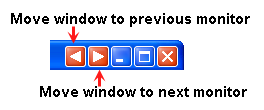
MonitorSwitch adds two custom buttons in the caption bar of any windows, allowing you to move the window to the next or previous monitor. . custom buttons in the caption bar
Custom menu commands to the Window

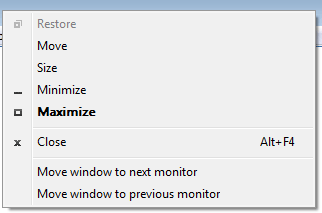
MonitorSwitch also adds custom menu commands to the window (or system) menu of applications that lets you quickly move windows between monitors.

Download Now
Version: V1.0.3
Last Updated: 30 April 2010
Windows All, 64-bitCompatible


What's New

Version 1.0.3 ( - CURRENT VERSION - ) (Release date: 2010-4-30)

  • Fix a bug: When a certain type of child window is sent to the second monitor the right
    hand portion of the window gets truncated.

Version 1.0.2

  • You can now use Hot-Keys CTRL+SHIFT+arrow to move the current window left or right!
  • Fix some bugs.

MonitorSwitch is freeware and will always remain free.

Sunday, May 2, 2010

SecureFileTransfer 1.0

SecureFileTransfer 1.0 Beta is released :

- Download SecureFileTransfer ( installer)
for checking genuine file use FootPrint and compare with SHA 512 : 2991934871cf1683730619a48a7c153bc428cf5fb0d41119b7db3da4ebf87a60024457fdbd0d08b29396ac3a7e671d947db27028e9bac2c69cdc9ff940a217b0


-Manual SecureFileTransfer:

-What makes this program:
allows you to transmit files securely, those who intercepts it can not be traced back to the plaintext data

-How he does it:
through communication between two computers, both must be present securefiletransfer (freeware, open source under New BSD license) one of which generates a key pair for asymmetric encryption, sends the public key to another computer that produces a symmetric key and sends the first computer after it is encrypted with the public key, the computer that receives possesses the private key to decrypt the symmetric key asymmetric and at this point the two computers are aware of a symmetric key through Rijndael (AES "implementation") is able to produce a level of encryption security that a brute force attack currently require time processing machine virtually impossible,
the public key is exchanged in clear encoded to 1024 bit and is not feasible go back to the private key,for a confirm of this you can also search on internet.

-What else makes securefiletransfer:
Server mode allows the program to create an unlimited number of users each of which is defined a username and password for each user is defined as a directory to read exactly what the user can access a directory read and write where the user has write access, for example the user with username "test" and password "mypassword" will have access to read the entire C: drive and write to c: \ Users \ test \ documents, to request or send the file should of course add to the server and send your username and password that will go on the Internet encrypted, as all data exchanged with Rijndael. SecureFileTransfer software encrypts all data stored locally that all data directories for user username passwords using rinjadeal and password as a password application that you choose your choice the first time you use the application and will then write to each boot and for each critical operation for amending or creating user accounts, password entry application (which can be a few characters) and some data (such as the user password is via virtual qwerty, this will completely avoids that a key logger can steal your login information to your file server (securefiletransfer in server mode)

Features:
-Server:
Entering the password-application
-Creating user: 1.choose username 2.chhose password 3.choose scelta directory with write access 4. choose directory read access

-Client:
-Password Entry Application
-Creating connection:
1.Insert ip address
2.Test ping (possible)
3.connection with insertion of username and password for that server (securefiletransfer server mode)
4.save connection name
-Choice of a connection between a list of connections and its opening with recovery of the list files that match the directory reading
-At this point the user can choose which file to recover in a grid, of course, may recover successively more 'file
Or which file-ship of his car to the remote server in the directory to which it has rights in writing

-Features common client and server:
a) Transfer SecureFile program provides initial and principal in the form of a read-only console where I write the main events and errors that occurred during the operation of the program, the program allows you to save a click in a txt file content of this console,
b) the software produces a txt file error log can be opened from the menu,
c) the program can be added or removed from the execution of automatic windows user selectable menu

Operating manual :

-software used to securely transmit their files on the network

-software may run in server mode or client mode .
Once the software is installed on first run you must enter a password that will be used to store sensitive data such as usernames and passwords in application,
entering passwords and other critical data applications is using this window:

this is necessary to avoid key loggers above all in server mode ,
to use the application you must create users for each user requires some parameters: a username, a password (I suggest to generate the user password using the functions of the user to avoid being vulnerable to attacks dictionary),

application can run and stop in client mode and server mode from the menu :

you must create at least one connection where you enter the IP address of the server a username and password of an authenticated user on the server at this point you can save the connection with a name ,


launching thus saved connection software retrieves a list of files you can select the file you want selecting line which have file name in the grid, pressing the button "Get Selected Files" the file is retrieved from the server program lets you choose where to save the file on your computer "client" ,
pressing the button “Send file to server” you choose which files to send to the server that will be saved in the directory where the client user has write access.