Wednesday, May 26, 2010

AllDup - Find and remove duplicate files on your PC

AllDup - Find and remove duplicate files on your PC

AllDup
AllDup is a freeware tool for searching and removing file duplicates on your computer. The fast search algorithm find duplicates of any file type, e.g., text, pictures, music or movies. The powerful search engine enables you to find duplicates with a combination of the following criteria:
  • File Name
  • File Extension
  • File Size
  • File Content (byte by byte compare)
  • Last Modified Date
  • Create Date
  • File Attributes

Features

  • Freeware for private and commercial use
  • Fast search algorithm
  • Find duplicates with a combination of the following criteria: file content, file name, file extension, file dates, file attributes!
  • Search is performed in multiple specified folders, drives, media storages, CD/DVDs, network dirves...
  • Search through an unlimited number of files and folders
  • Search for duplicates of music and video files
  • Search for duplicates of digital photo files
  • Search for duplicates of executable and any other files
  • Entire folders or individual files can be excluded from the search by masks or size conditions
  • The built-in file viewer allows you to preview many different file formats and analyze the content of the file before deciding what to do with it
  • Ignore the ID3 tags of MP3 files
  • Convenient search result list
  • Many flexible options help you to select unnecessary duplicates automatically
  • The unnecessary duplicates can be deleted permanently or copied/moved to a folder of your choice
  • Save and restore the search result for continue working later
  • Export the search result to TXT or CSV file
  • Turn duplicate files into hard links (NTFS file systems only) or shortcuts
  • Detailed log file about all actions

System Requirements

  • Microsoft Windows 7 (all versions)
  • Microsoft Windows Server 2008 (all versions)
  • Microsoft Windows Vista (all versions)
  • Microsoft Windows Server 2003 (all versions)
  • Microsoft Windows XP (all versions) *
  • Microsoft Windows 2000 (all versions) *

AllDup also runs on the 64-bit versions of these operating systems.

* The portable version of AllDup doesn't support Windows XP without any Service Pack installed and Microsoft Windows 2000.

Get Folder Side

GetFoldersize

GetFoldersize
GetFoldersize allows you to determine the size of folders and sub-folders on your hard drive. Determine which programs are taking up your hard disk space. For each folder, you can display the total file size and the number of files and subfolders in the folder.

Features

  • Freeware for private and commercial use
  • Determine the size of folders and sub-folders on drives, media storages, CD/DVDs, network shares...
  • Fast scan algorithm
  • Scan file and folder paths with an overall length of up to 32,000 characters and file and folder names containing Unicode characters
  • Scan an unlimited number of files and folders
  • Show the number of file and/or folder of all files and subfolders
  • Display the file size in Bytes, Kilobytes, Megabytes and Gigabytes
  • Print the folder tree
  • Save the folder tree and information into a text file
  • Start GetFoldersize and scan folders right from the windows explorer context menu

System Requirements

  • Microsoft Windows 7 (all versions)
  • Microsoft Windows Server 2008 (all versions)
  • Microsoft Windows Vista (all versions)
  • Microsoft Windows Server 2003 (all versions)
  • Microsoft Windows XP (all versions) *
  • Microsoft Windows 2000 (all versions) *
GetFoldersize also runs on the 64-bit versions of these operating systems.

* The portable Version of GetFoldersize don't support Windows XP without any Service Pack installed and Microsoft Windows 2000.

Gizmo's Freeware Reviews


Editor's Choice List
Our "Top Picks" - the best in every category
Best Free Online Apps
The best of what "cloud" computing has to offer.
Best Free Portable Apps
Fill up your USB stick with these top programs.
Or select a software category below:
Cleanup & Tuning
File Cleaning, Memory Optimizer, System Tune-Up and more...
Desktop & GUI
File Manager, Program Launcher, Start Menu, Tray Icons and more...
Disk & File Tools
Backup, Restore, Encryption, Synchro-nization and more...
Educational
There is always something to learn...
Games
Computer games, chess and other diversions.
Home & Office
Office Suites, Finance, Project, Spell-Checker, PIM and more...
Image View & Edit
Bitmap, Vector, HDR, Viewer, Photo Organizer and more...
Internet & eMail
Browser, eMail, IM, Download, Parental Filter and more...
Linux
Our Linux section with tips and software...
Multimedia
Audio/Video Edit, Ripper, Burner, Online TV and more...
Networking
FTP, SSH, Remote Access, BitTorrent and more...
Programming
Editors, Binary Extraction, Search & Replace and more...
Lookup & Cataloging
CD, DVD, File and Software Cataloging and more...
Security
Anti Virus, Adware, Firewall, Intrusion Prevention and more...
System Info
Disk, RAM, Memory, Down/Up, WiFi Finder and more...
System Tools
Registry, Time, Vista Tweaks, Font Manager and more...
Website & Server
Web scripts and server software...
Find more free stuff in these sections:
Video Tutorials
Watch how things are done...
Hot Finds
Hot items, just found by our editors.
Daily Tech Treats
One treat a day...

Folder Lock

PenyuLocker is another free software from Penyu Radius.

PenyuLocker is a small tool to secure your folder. With PenyuLocker, you can lock or unlock any folder with a given password. This will prevent unauthorised person from having access to any sensitive or confidential information in your computer.

Once locked, it will display a locked icon. To unlock the folder, run PenyuLocker software. Browse to the previously locked folder and select "Unlock" function. It will again ask you for a password. Make sure you remember the password.

Enjoy another free product from Penyu Radius. PenyuLocker software is free without any limitation on number of use or any advertisement or nagging screen. In previous version, the locked folder will camouflage as recycle-bin icon but we have now changed it to a "Lock" icon to avoid confusing the users.

Link 1 Link 2

PenyuLocker

Version: 1.2.0

Requirements: Tested on Windows Vista and 7

Price: Free

Installation Note:-

1. Download and unzip the file

2. Then run the file name PenyuLockerInstaller.exe

3. Start Installation and follow the wizard.

.

PenyuLocker offers encrypted and password protection for your files and folders. Once locked, a lock icon will be displayed.

MonitorSwitch®, Quickly move windows between monitors

MonitorSwitch®, Quickly move windows between monitors

Moving windows is a common task on multi-monitor systems, and MonitorSwitch makes it easier and more efficient.

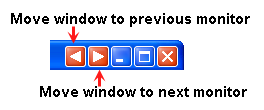
MonitorSwitch adds two custom buttons in the caption bar of any windows, allowing you to move the window to the next or previous monitor. . custom buttons in the caption bar
Custom menu commands to the Window

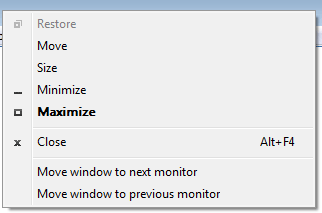
MonitorSwitch also adds custom menu commands to the window (or system) menu of applications that lets you quickly move windows between monitors.

Download Now
Version: V1.0.3
Last Updated: 30 April 2010
Windows All, 64-bitCompatible


What's New

Version 1.0.3 ( - CURRENT VERSION - ) (Release date: 2010-4-30)

  • Fix a bug: When a certain type of child window is sent to the second monitor the right
    hand portion of the window gets truncated.

Version 1.0.2

  • You can now use Hot-Keys CTRL+SHIFT+arrow to move the current window left or right!
  • Fix some bugs.

MonitorSwitch is freeware and will always remain free.

Sunday, May 2, 2010

SecureFileTransfer 1.0

SecureFileTransfer 1.0 Beta is released :

- Download SecureFileTransfer ( installer)
for checking genuine file use FootPrint and compare with SHA 512 : 2991934871cf1683730619a48a7c153bc428cf5fb0d41119b7db3da4ebf87a60024457fdbd0d08b29396ac3a7e671d947db27028e9bac2c69cdc9ff940a217b0


-Manual SecureFileTransfer:

-What makes this program:
allows you to transmit files securely, those who intercepts it can not be traced back to the plaintext data

-How he does it:
through communication between two computers, both must be present securefiletransfer (freeware, open source under New BSD license) one of which generates a key pair for asymmetric encryption, sends the public key to another computer that produces a symmetric key and sends the first computer after it is encrypted with the public key, the computer that receives possesses the private key to decrypt the symmetric key asymmetric and at this point the two computers are aware of a symmetric key through Rijndael (AES "implementation") is able to produce a level of encryption security that a brute force attack currently require time processing machine virtually impossible,
the public key is exchanged in clear encoded to 1024 bit and is not feasible go back to the private key,for a confirm of this you can also search on internet.

-What else makes securefiletransfer:
Server mode allows the program to create an unlimited number of users each of which is defined a username and password for each user is defined as a directory to read exactly what the user can access a directory read and write where the user has write access, for example the user with username "test" and password "mypassword" will have access to read the entire C: drive and write to c: \ Users \ test \ documents, to request or send the file should of course add to the server and send your username and password that will go on the Internet encrypted, as all data exchanged with Rijndael. SecureFileTransfer software encrypts all data stored locally that all data directories for user username passwords using rinjadeal and password as a password application that you choose your choice the first time you use the application and will then write to each boot and for each critical operation for amending or creating user accounts, password entry application (which can be a few characters) and some data (such as the user password is via virtual qwerty, this will completely avoids that a key logger can steal your login information to your file server (securefiletransfer in server mode)

Features:
-Server:
Entering the password-application
-Creating user: 1.choose username 2.chhose password 3.choose scelta directory with write access 4. choose directory read access

-Client:
-Password Entry Application
-Creating connection:
1.Insert ip address
2.Test ping (possible)
3.connection with insertion of username and password for that server (securefiletransfer server mode)
4.save connection name
-Choice of a connection between a list of connections and its opening with recovery of the list files that match the directory reading
-At this point the user can choose which file to recover in a grid, of course, may recover successively more 'file
Or which file-ship of his car to the remote server in the directory to which it has rights in writing

-Features common client and server:
a) Transfer SecureFile program provides initial and principal in the form of a read-only console where I write the main events and errors that occurred during the operation of the program, the program allows you to save a click in a txt file content of this console,
b) the software produces a txt file error log can be opened from the menu,
c) the program can be added or removed from the execution of automatic windows user selectable menu

Operating manual :

-software used to securely transmit their files on the network

-software may run in server mode or client mode .
Once the software is installed on first run you must enter a password that will be used to store sensitive data such as usernames and passwords in application,
entering passwords and other critical data applications is using this window:

this is necessary to avoid key loggers above all in server mode ,
to use the application you must create users for each user requires some parameters: a username, a password (I suggest to generate the user password using the functions of the user to avoid being vulnerable to attacks dictionary),

application can run and stop in client mode and server mode from the menu :

you must create at least one connection where you enter the IP address of the server a username and password of an authenticated user on the server at this point you can save the connection with a name ,


launching thus saved connection software retrieves a list of files you can select the file you want selecting line which have file name in the grid, pressing the button "Get Selected Files" the file is retrieved from the server program lets you choose where to save the file on your computer "client" ,
pressing the button “Send file to server” you choose which files to send to the server that will be saved in the directory where the client user has write access.