Tuesday, April 14, 2009

How To Roll Back Windows Hot Fixes & Patches

Microsoft, like all other software companies, releases patches and hot fixes for its Windows operating system quite frequently.

Installing the latest patch or Hot fix is highly recommended if you want to keep your installation in tip-top shape.

These patches are mostly harmless but there are times when your current configuration, hardware or software might not be compatible with a particular patch and you find that out only when your system starts misbehaving after you’ve applied the patch.

The new patch might not be compatible with your current hardware. An ancient software that you still use and love might stop working with the new patch. In times like these, one really wishes that Microsoft had a built in patch rollback mechanism. Are you one of those wishing for such a feature ?

Well, the good news is that Microsoft already has mechanisms to roll back patches. The bad news is that the roll back procedure is just not that obvious.

Roll back a patch on Windows XP

If you’re using Windows XP, browse to the Windows install directory, typically c:\WINDOWS and enable the hidden files view using the Tools -> Folder Options menu option.

You should now be able to see a bunch of hidden folders under the main c:\WINDOWS folder. All the folders which have names of the form of $NTServicePackxxxx, $NTUninstallxxxx and $NTUninstallKBxxxx are folders corresponding to the different patches that you’ve installed.

The folders with KB in their name followed by a 5 or 6 digit number are hot fixes which Microsoft has released in response to a bug and the number denotes the corresponding Microsoft knowledge base article associated with that hot fix.

Now, to uninstall a particular patch, go inside the folder corresponding to that patch. You will see another folder named spuninst. Inside this folder will be a Windows setup executable of the same name.

This is the Uninstaller program for the particular patch that you’re browsing right now. Just run the program and the patch will be rolled back and your system will be as pristine as it was before you applied the patch.

Roll back a patch on Windows Vista

I am using Windows Vista on my primary work machine these days and on this machine, I couldn’t find the $NTUninstall folders but I found another way to roll back patches on Vista - System Restore.

Windows Vista, by default, takes a snapshot of a system before applying any patches using a feature called System Restore.

To roll back a patch using System Restore, click on the Start menu and start System Restore using the All Programs -> Accessories -> System Tools menu item.

System Restore is a wizard based utility which lets you chose the restore point and brings the system back to the chosen state.

If you want to restore your system to a point earlier than the recommended restore point, then select the second radio button and you will be able to see a list of the restore points Vista has available for you to roll back to.

This is definitely the easiest method to roll back a wayward patch or hotfix

How To Password Protect Any Windows Program

We live in paranoid times. But didn’t someone say –

“Securing a computer system has traditionally been a battle of wits: the penetrator tries to find the holes, and the designer tries to close them.”

After looking at ways to password protect files and folders, after getting through some ways to secure the entire system, I think it’s worth taking a look at how to lockdown the program files themselves.

Most applications don’t come with user restrictions and this becomes a security flaw when two or more people are using the same computer (and the same user account). Password protecting the applications by locking the program’s exe file ensures that a particular application can only be used by someone with a ‘security clearance’.

Password protecting the executable files is just another way you can heighten security in a shared environment. Of course, it goes against the spirit of sharing but even the most generous wouldn’t want prying eyes on his data while he is at the water cooler. Password protection of individual executables is also helpful in public places like schools, internet cafes, or even restricting access to children.

So for the overly suspicious and the cautious, here are two ways to restrict access to the executable program files themselves…

Protect Exe (Beta)

Protect Exe 0.4 is a freeware program that lets you password protect any Windows executable program. It is useful for locking Win XP/Windows Vista/Win 2000/Win 2003 Server/Win 98/Win Me/Win 95/Win NT 4.0 exe files. Protect Exe 0.4 does not make any changes to the registry while locking the files, nor does it save the password in a hidden file somewhere on the system. It works by encrypting the exe with a twofish 256 bit key. So the executable only works when the correct password has been fed to it.

Protect Exe 0.4 also does not run as a background process, so it cannot be cancelled out by using the Task Manager. As it modifies the exe file itself, changing the user account or copying it to another system does not compromise the security. As a failsafe, the program creates a backup of the exe which you can keep elsewhere in case you forget the password.

Protect Exe 0.4 at 124KB is a featherweight protection system.

Empathy

Using Empathy one can password protect any executable file and keep it protected even if it is copied to another location or computer. The light footprint of the software (219KB) means that it can also be used to protect portable apps carried around in USB drives.

Empathy uses similar password protection to the previous app and also creates a similar backup, but the software looks more well rounded with a neater interface.

Beyond the looks the software suffers slightly as it is limited to the use of a single character password. If this strikes you as odd then consider that the software is postcardware.

The developer explains,

“Empathy is postcardware. You can use it freely for an unlimited period, but if you want to use it with all functions, you have to register it by sending me a picture postcard (not an electronic/e-mail postcard - you can send something with a picture of your city on it, or anything you like). After receiving the postcard, I will send you an unlocking code by e-mail.”

On second thoughts, I didn’t find the single character password too much of a handicap because I have quite a few on my keyboard to use in the input field.

Empathy v2.1 is compatible with Windows (all versions).

As an added precaution it is recommended that you put the software through the paces on a non-essential executable first before applying it more seriously. Also, always keep the backup option ticked.

There is a lot of paid software out there which offers the same functionality and more. But if it’s free you want then these two are the way to go.

Have you used program protection? Do you know of any other freeware that does the job? Let us know in the comments below.

Sunday, April 12, 2009

How to sync an iPhone with two (or more) Computers

(Or, How to sync an iPhone with one computer and manually manage music and videos on another).

Note: This tutorial allows you to add music/videos/podcasts from multiple machines. If you just want to sync PIM (Contacts/Calenders etc) on one machine and media on another there’s a simpler way. On the computer you want to sync contacts/calendar with select only these items and perform a sync. Now, on the second machine enable Music/Photos/Etc and perform a second sync. You will be warned the media library will be deleted, but as there’s no media this is fine :)

Because I do most of my music listening at work and my Calendar/Address book are kept in Outlook I have my iPhone setup to sync with my office PC. When I’m at home however I find I also want to put music/podcasts/videos on my iPhone for the weekend or trips.

Normally it’s only possible to sync media on an iPhone with one computer. If you try to use a second computer you get the warning below that "the iPhone XXX is synced with another iTunes library. Do you want to erase this iPhone and sync with this iTunes library"?

sync_warning

However, I’ve found an easy fix for this. In the instructions below I’ll show how to modify any iTunes Library so it can also be synced with your iPhone. You can then either manually manage your iPhone on a second computer, or sync different data on different machines (E.g. Music at home, Contacts/Calendar at work).

The instructions below use the example of modifying the iTunes library on my home Mac to work with my existing iPhone/PC setup. If your existing library is on a Mac, or both machines are of the same type, then the steps are identical.


Notes

  • On the PC you can find your iTunes folder in your "My Music" (XP) or "Music" (Vista) directory. On the Mac it is in your Music directory.
  • For the editing part, I recommend UltraEdit on the PC and a combination of TextExit / HexEdit on the Mac. Any hex editor will do, and you only need to edit files on the second machine.
  • After completing these steps you will be able to sync your iPhone with both computers, either by normal syncing or choosing one machine to manually manage your music and videos. Unless you also keep your music libraries in sync, I recommend you do not attempt to normal sync the same types of data on both machines.

Backup Your Library

On the machine you want to sync with, backup "iTunes Music Library.xml" and "iTunes Music Library" (Tunes Music Library.itl on PC) to a safe location. These are the files you will be modifying.

1) Find your iTunes Library ID

On the machine your iPhone currently syncs with, open "iTunes Music Library.xml" with a text editor and find the entry between the tags, after "Library Persistent ID". In the example below this is 8B6C633F7DACB74B. Copy this entry exactly to a piece of paper, email, temporary file etc. You can then close this file.

sync_notepad

2) Change your Library ID

iTunes stores your library information in two places. An XML file and a binary file. You now need to change the ID in both so they match your other library.

Make sure iTunes is not running.

On the machine you want to sync with open "iTunes Music Library.xml" in a text editor. Again, find the entry between the tags after "Library Persistent ID" and copy this entry exactly. This time you can use the clipboard if you wish.

When you have a copy, replace this entry with the one you copied in part 1. Make sure you do not change anything else, and the length of the entry is 16 characters/digits. Save this file and close it.

windowslivewriterhowtosynca

In the Hex Editor, open "iTunes Music Library" (Tunes Music Library.itl on PC).

Select "Find and Replace" from the Edit menu. Make sure "Hex" matching is selected (not ASCII). In "Find" enter the ID you took a note of in Part 1. In Replace, enter the ID you copied at the start of Part 2. Choose Replace All, there should be one match.

Save this file and close it.

sync_hex

Success!

Start iTunes on the machine you wish to sync with and plug in your iPhone. When you select "Manually manage music and videos" you will no longer be prompted to erase your data, nor will the files on your iPhone be grayed out.

Additional Notes

Previously I’ve found that intentionally corrupting the binary "iTunes Library" file (e.g. replacing it with a text file) would cause iTunes to regenerate it using the XML data. This no longer appears to work for me in iTunes 7.6.1 and the "repaired" file only contains a few songs. This may be because I keep my music on an external drive but I cannot say for sure. Either way, patching the binary file does not take long and removes any chance of later problems.

Saturday, April 11, 2009

How to connect and use VM Explorer from Trilead

Great tool to use with your ESX or ESXi server. Trilead VM Explorer. You can use this tool to access and manage your VMs and also to execute backups manually. The differenc In the paid version is that you can use SAN, do a scheduled backups, having a real support, and have more than 5 ESX servers. Also you are able to have nice daily html repports sended via e-mail.

So what do you need to do to correctly access your ESX Server with VM Explorer:

1.) Go to the console or with your KVM and press ALT+F1, enter “root” as a user and password you assigned when you first installed the ESX Server.

2.) Then create a new user without privileges. I created user vladan (for example).

type “useradd -m vladan” and “passwd yourpassword” (must be complex enough)

3.) Then open putty (I use putty portable) and connect with user vladan and your password created for this user when you were on the console.

Then just type “su -” (to became root. You’ll be asked for a root password). Type it in.

trilead-vm-explorer5.jpg

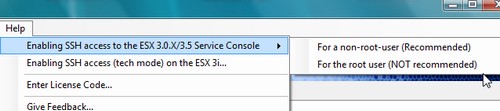
4.) Then go and open VM Explorer > go to Help. And you choose Enabling SSH access to the ESX 3.0/3.5 Service console. You can choose the root user if you are not about a security issues.

trilead-vm-explorer3.jpg

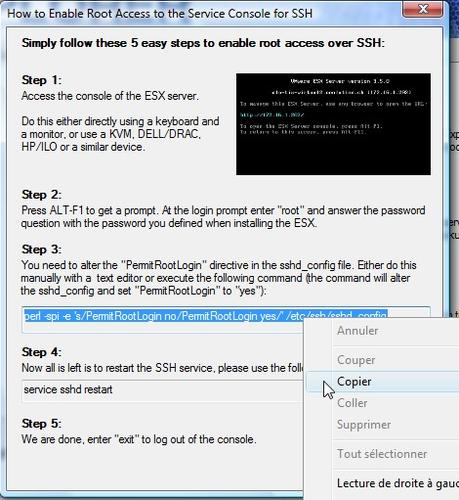
5.) Then just copy a line as on the image bellow.

trilead-vm-explorer4.jpg

6.) And click right into your putty windows to paste (see, just right click is enough….. ) and hit enter. You enabled root access via SSH.

putty-vm-explorer.jpg

7.) Then you need to type in the putty window the command “service sshd restart”. To restart the SSH service (sshd - ssh daemon)

service-sshd-restart.jpg

And you are DONE!! You can now Add your server to the VM Explorer and start to use this software.

VM-EXPLORER-OK.jpg

How-to make your VMs running more silently

Ever wonder it is possible not to have the PC speaker turned Off when you’re running your VMs? It’s sometimes quite anoying when you VMs beeps all the time. You can just modify the global configuration file or VMware Workstation.To do this:

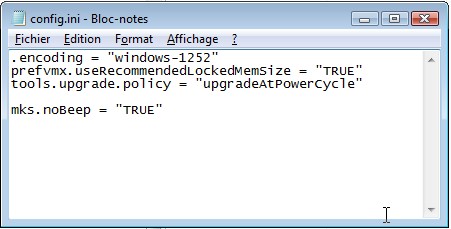
To disable the speaker emulation for virtual machines, add the following line to Workstation’s global configuration file:

mks.noBeep = “TRUE”

On Windows host:

  • \Documents and Settings\All Users\Application Data\VMware\VMware Workstation\config.ini

On Linux host:

  • ~/.vmware/config

If the file does not exist, you can always create a new text file and add the mks.noBeep line to it.

For other information see Creating and Editing config.ini (for Windows hosts) at http://kb.vmware.com/kb/1754.

no-beep