Microsoft Online ROI to analyze your saving using Virtualization.
It will build a custom saving report for you.
http://www.hyper-green.com/
Wednesday, November 26, 2008

Confuse about Microsoft Licenses?
Help is on the way.
Watch a quick 5-10 minutes about about how to asset your environment.
From Desktop, SQL, Windows, etc.
http://www.learnlicensing.com/
Watch a quick 5-10 minutes about about how to asset your environment.
From Desktop, SQL, Windows, etc.
http://www.learnlicensing.com/
How to find computer serial number
Instructions
Please use one the method bellow to retrieve the computer serial number:
1. Using the buid in "wmic" command:
"wmic bios get serialnumber"
Tip: You can use the command "wmic csproduct get name" to retrieve the local computer model.
2. Using a vbs script:
On Error Resume Next
Dim strComputer
strComputer = InputBox("Enter the name of the computer:")
Set objWMIService = GetObject("winmgmts:" & "{impersonationLevel=impersonate}!\\" & strComputer & "\root\cimv2")
Set colSMBIOS = objWMIService.ExecQuery ("Select * from Win32_SystemEnclosure")
For Each objSMBIOS in colSMBIOS
MsgBox strComputer & ": " & objSMBIOS.SerialNumber
Next
3. How Can I Find Expiring Passwords?
http://www.microsoft.com/technet/scriptcenter/resources/qanda/nov08/hey1118.mspx
4. How Can I Find Old Computer Accounts?
http://www.microsoft.com/technet/scriptcenter/resources/qanda/nov08/hey1119.mspx
Monday, November 24, 2008
13 Great Free Backup Programs for Windows, Mac, and Linux

Making sure you've got a reliable backup solution is a must for any user - and more so for an administrator. Why? Well, mostly because your users probably aren't very good at remembering to back up their own files. And so it falls to you to provide the right software for the job!
Backup software is a difficult category to tackle nowadays as the distinction between backup and synchronization apps has become a little blurred. Prices being what they are, my personal choice is to use external or removable hard drives for my backup chores - my current favorites are Bonkey and Cobian.
To make sure you've got plenty of options to choose from, I've split this list into three different categories so that you can choose from the options that are best suited to your environment.
Integrated Burning
Comodo Backup [win]
They do make than a great firewall. Comodo Backup is an excellent free solution. It has extremely flexible scheduling and notification options, supports FTP destinations, can burn multisession DVDs, and has a synchronization mode for quick realtime backups.
DFIncBackup [win]
As is the case with most backup applications, there's a free and paid version. The free one still handles CD/DVD backups, and it also does incremental .zip jobs as well - only backing up files that have changed or weren't present in your previous job.
SE Backup [win]
Sports a very simple interface, does CD and DVD burning and compression, and is available as a portable application. Scheduling isn't built in, but it supports command line launching with parameters which works very well with Windows' own Task Scheduler.
File Copy
Abakt [win]
Though it's no longer developed, Abakt is still a great choice. It's got a great file filtering system, supports 7zip and zip compression, file splitting, password protection, and does differential and incremental backups.
Areca [win]
Free, open source, and wicked powerful. Areca is loaded with features: compression, encryption, simulation, merging, transaction commit/rollback, filtering, and more. It's command line interface provides excellent automation options and Areca also supports scripting of post-job actions.
Bonkey [win] [mac]
The "Backup Monkey." If I was giving points for best mascot, this one would be a clear winner.
Bonkey runs on both Windows and Mac, and has a lot of great features. It supports email, FTP, and Amazon S3, compression, encryption, scheduling, and synchronization. It'll even back up MS SQL server databases.

Cobian Backup [win]
Apart from being a great application, Cobian's developer has an excellent tutorial online to help you get started. Though it is no longer open source, you may still download the last version that was (v8). There's also a portable version.
One of my favorite features of Cobian is its ability to handle pre- and post- job events. I use it to issue net stop and net start commands to ensure safe backups of our horrible, horrible point-of-sale system. Cobian also has the ability to control and monitor all its instances on your network from your own workstation.
JaBack [win] [mac]
Allows backup to FTP and email (as well as any drive on your computer or network), and sports a flexible scheduler. It also has a file monitor function that will perform backup operations whenever changes are detected.
Mathusalem [mac]
Offers FTP/SFTP, Amazon S3, WebDav, and SMB support for backups on OSX. Mathusalem can compress to zip and dmg, will resume failed uploads, and supports scheduling and command line launching. It's also open source.
Server-Based
Bacula [win] [mac] [linux]
Bacula is an enterprise grade network backup solution that runs on just about every platform imagineable. It's a much more complex system than the other options I've mentioned, but is extremely powerful and well-suited to a medium or large scale network.
BackupPC [win] [linux]
A Linux-based, client-free enterprise solution for backing up Windows and Linux machines. BackupPC uses SMB, tar, and rsync to extract backup data from client computers. It 's got a powerful web-based interface for administrators and users, and will even email reminders to users that have been remiss in performing backups.
It's a very flexible solution, and is open source.
NasBackup [win] [linux]
Uses a simple Windows GUI and rsync to perform backups from client machines to a central server. It'll do incremental backups, scheduling, compression, encryption, and the server offers useful per-client controls like limiting the number of versions to store and expiration dates. It also provides daily summaries via email.

Restore [win] [mac] [linux]
The self-proclaimed "reason backup was invented." It's definitely a great product, and full of terrific features. Its web interface is very easy to understand and use - and makes it easy for the mobile admin to monitor and control Restore from anywhere.
Restore supports FTP, WebDav, SSH/SFTP, and multiple revisions. It also provides powerful admin tools, making it easy to create and control users, groups, jobs, and scheduling.
24 Killer Portable Apps For Your USB Flash Drive

My flash drive works pretty hard, so I've spent a lot of time gathering a reliable, powerful set of portable tools that allow me to work hard and play hard, even if I can't do it on my own PC. Here are two dozen apps that I always have at the ready.
Encryption
Truecrypt - Why is TrueCrypt first on the list? Simple. A multi-gig, easy-to-lose, unencrypted drive with your data on it is a terrible security risk. Truecrypt helps me keep all my private stuff locked down. Read the "traveller mode" documentation for help setting it up.
Web and Internet
Operator - I'm not an Opera fanboy by any stretch, but if I've got to surf on a public computer, I'm using Operator. It's got Tor anonymous browsing built in to keep you safe. You can read more about it in my previous post. If I'm on a trusted computer, I'll go for Portable Firefox.
Pidgin - I don't usually need to IM from a client's site, but just in case I need to stay in touch I bring Pidgin with me. For portable multi-network chat, it's the best option out there. Add the encryption plugin to keep it secure.
Filezilla - Half the time I need Notepad++, it's because I'm editing files on my FTP server from the road. Filezilla portable keeps all my sites accesible from wherever I am.
Peer-to-Peer
μTorrent - Yet another recurring frustration is not being able to find a torrent client on a PC when I need it. I run μTorrent on all my PCs anyways, so it's got a home on my flash drive as well.
Frostwire - What's worse than getting a song stuck in your head and not being able to hear it? Take Frostwire with you and make sure that doesn't happen.
Maintenance and Support
CCleaner - A lot of the computers I work on look like they've never had a single file deleted from them. CCleaner makes short work of dumping gigs of trash files from them, and it tidies up the registry, too.
Revo Uninstaller - Phase two in the purging of filth from client machines is ridding them of unwanted apps. Revo is way better than add/remove programs, and the "hunter mode" uproots stubborn apps.
Nirsoft Apps - I have to group these, because they'd eat up half my list otherwise. Dialupass, Mailpassview, Currports, Netresview, and several other of their apps are must-haves for any technician.
Treesize Free - To find where all of someone's drive space is going in a hurry, fire up Treesize. It makes drive cleanup a snap.
Teamviewer - Zero config remote control that's portable? Yes, I'll have that. Teamviewer kicks so much ass that it was an easy sell to my boss, who makes Mr. Crabs look like a big spender.
Multimedia
CDBurner XP - Customer's don't always have good - or any - burning software installed. CD Burner XP solves that problem. I switched from InfraRecorder, but it's a good option as well.
Screamer - I tried screamer out a while ago for a post on DLS, and it's earned a spot on my drive. For quick access to tons of internet radio streams, you can't beat it.
Faststone Capture - Whether I need a screencap for a blog post or to prove something to someone, Faststone is my app of choice. The included editing features are great, and mean that I don't need a photo editor for quick jobs. The link is to the last free version (at Portable Freeware Collection), as Faststone is now trialware.
VDownloader - You never know when you're going to stumble across a YouTube video that you just have to save. VDownloader will save in a number of video formats, or the audio only as MP3.
Irfanview - For image viewing and basic edits (crop, rotate, resize, etc.) , it's Irfanview all the way. The homepage is here, but the portable version is over at Smithtech.
VLC - Videolan wins as my portable media player because it supports so many formats and doesn't require outside codecs. Can 100 million downloaders really be wrong? Ok, sure they can. But I still love VLC.
Document Handlers
Notepad++ - It never hurts to have a good text editor at your disposal, and portable Notepad++ is an excellent option. Tons of great features, like macro recording, syntax highlighting, tabbed interface, and much, much more.
Abiword - Some may opt for OpenOffice, but I choose Abiword because I've got Zoho and Google Docs accounts for out-of-office chores that require heavy lifting. Abiword is small, fast, compatible, and has all the features I need for quick document production. The portable version is here.
Foxit PDF Reader - I hate trying to open a manual on a customer's PC only to learn they don't have an Acrobat viewer installed. Foxit is my reader of choice, so I take it with me.
File Management
Total Commander - Not only is Total Commander a rockin' dual-pane, tabbed Explorer replacement, but it also handles all kinds of archive files. That eliminates the need for two more apps just to handle syncs and file extraction. Until someone resurrects Google browser sync or Mozilla Weave handles all my Firefox settings and customizations I'll just let TC do it for me. Yes, it also has an FTP client and text editor, but FileZilla and Notepad++ are better.
Portable Launcher
PStart - It's nice to have quick access to the tools on your flash drive, and PStart gives you that by adding an icon/menu in the system tray. It's searchable, and there's even a tab to store quick notes for yourself.
There's my list. Would my flash drive cut the mustard for you, or did I miss your favorite app?
24 Great Open Source Apps for Admins & Technicians
I'm always on the lookout for apps that can ease my workload or free up some room in my budget, and open source applications are an excellent way for me to accomplish both.
If you're in the same boat as me, hopefully you're already utilizing some open source options. If not, I've put together this list of two dozen great applications that I can depend on to keep things running smoothly on my office LAN and customer systems as well.
Some of these you'll recognize, but I hope that there are some that are new to you as well.
If you're in the same boat as me, hopefully you're already utilizing some open source options. If not, I've put together this list of two dozen great applications that I can depend on to keep things running smoothly on my office LAN and customer systems as well.
Some of these you'll recognize, but I hope that there are some that are new to you as well.
- PING - I may be beating a dead horse here with my love of PING, but it's just a great piece of open source. Drive imaging with network and spanning support, password blanking, it's just an excellent app.
- NTRegEdit - The Windows Registry editor hasn't seen many changes over the years. NTRegEdit offers some great additional features like recursive export, color coding, improved searching, and quick edit window below the values list.
- Safarp - A portable alternative to appwiz.cpl (add/remove programs), it provides a few extra useful features - like silent uninstalls and repairs of Windows Installer-based apps. It also opens in a flash, unlike the clunky appwiz.
- WPKG - Maintaining software installs on computers in a small business environment can be a little frustrating sometimes. WPKG gives you push/pull installs and it can run as a service, so silent installs run transparently with no user ineteraction.
- ClamWin - Open source antivirus that does damn near everything the "big boys" do: automatic updates, scheduled scans, email scanning. There's no realtime shield, but coupling it with the next app in the list lets ClamWin do that, too.
- Winpooch - Originally designed to detect activity from trojans and other spyware, Winpooch monitors program activity on your system and gives you greater control over them (like preventing an .exe from connecting to the net or writing to a system folder).
- Vispa
- Xpy - These two offer fast ways to tweak XP or Vista by turning off unwanted services and features.
- WCD - Its stands for Wherever Change Directory, and it's a real timesaver for anyone that works with the Windows command prompt. All it needs is part of a directory name to change to it (wcd username to get to a user's home folder).
- Angry IP Scanner - If I'm asked to inventory a location, I usually start with Angry IP. It quickly builds a list of all live hosts on a network and makes it easy to locate the addresses for devices like Wireless APs, print servers, and the like.
- Startup Manager - MSconfig's startup control pane doesn't have a lot of functionality. Startup Manager is an excellent replacement, and it's available in a portable version as well.
- JKDefrag - Anything that automates system maintenance is worth a look, in my opinion. JKDefrag's screensaver installer puts your users' idle desktops to work for you, defragmenting whenever the .SCR kicks in.
- WinDirStat - Need to locate spacehogs on a user's hard drive? Fire up WinDirStat and let it go to work and it'll build a detailed (if not visually distracting) report of where drive space is being allocated.
- DeltaCopy - A fast incremental backup tool based on rsync. It supports scheduled backups and email notifications, and syncs client machines to virtual directories on a central server. I back up our point of sale history with this app - because a full copy of 1.2gb doesn't make sense when only a few hundred kilobytes have changed in the last business day.
Both the client and server apps are included in the 6.3mb download. - EchoVNC
- InstantVNC - Run these two together and you've got a free (albeit visibly slower) version of TeamViewer. Make sure you (or your client) enters a password when launching InstantVNC, or anyone viewing the list of clients with Echo could, theoretically, take control of the machine.
- Putty - A fantastic portable SSH and telnet client. What else can you say about Putty?
- InfraRecorder - I don't necessarily want burning software installed on all my client desktops, but I need it from time to time to do a quick backup. Since InfraRecorder is portable, I can run it from my flash drive or a network share.
- 7-Zip - I know 7-Zip doesn't have the prettiest GUI, but I rarely use it from anywhere but the context menu. It works like a champ and handles all the archive types I deal with on a daily basis.
- FreeOTFE - If you have any sensitive data on your network, you may want to have a look at Free On The Fly Encryption. It sports an easy-to-use interface that allows the creation of virtual encrypted drives. There's also a PDA version available to protect mobile data.
- QLiner Hotkeys - I love my hotkeys, and I miss them when I'm working on someone else's system. QLiner is portable, so I can just fire it up on an unfamiliar rig and access them without missing a beat. Add in the Zip tool to archive files with a single keypress.
- HealthMonitor - Keep tabs on your servers (or workstations) and get email or SMS alerts when trouble's afoot. It'll monitor everything from ram and drive space to services and event logs.
- Memtest - The tool I rely on to troubleshoot RAM issues. I've never run a Memtest and had it miss a faulty module. If the test does't launch or if the screen goes red, I know it's found the problem.
- DBAN - Darik's Boot and Nuke is a nice tool to keep handy if you donate old hardware. It's available as a floppy, USB, or CD image, and will locate and securely wipe the contents of just about any hard drive. It's even certified by the Royal Canadian Mounted Police.
Saturday, November 22, 2008
Cyber-D AutoDelete

This program can automagically delete files in a specific folder that are older than the specified time. It checks the file dates by modification time. You can have it run on every Windows startup to delete old temp files, backups, webcam snapshots history, temporary internet files, etc...
Download
Convert PDF to Word (Free Online)
Convert PDF documents to Microsoft Work for free......Nice online utility
1. Upload your pdf file, it will automatic convert and save the file as *.doc
2. Repeat step #1 again for more files.

1. Upload your pdf file, it will automatic convert and save the file as *.doc
2. Repeat step #1 again for more files.

Create PDF documents on the fly — for Free with CutePDF Writer!
Portable Document Format (PDF) is the de facto standard for the secure and reliable distribution and exchange of electronic documents and forms around the world. CutePDF Writer (formerly CutePDF Printer) is the free version of commercial PDF creation software. CutePDF Writer installs itself as a "printer subsystem". This enables virtually any Windows applications (must be able to print) to create professional quality PDF documents - with just a push of a button!
You will need: Click to Download

You will need: Click to Download
- CuteWriter.exe
- GNU Ghostscript is an open-source interpreter for the PostScript language and the PDF file format. I. Ghostscript 8.15

Tuesday, November 18, 2008
What about those Jumbo Frames?
Support for Jumbo Frames is one of the major new features for ESX 3.5. Especially for the people who are using an iSCSI SAN configuring jumbo frames could be very beneficial. Instead of having an MTU(maximum size of transmitted packet) of 1500 an MTU of 9000 would be possible. That would cut out a lot of the iSCSI overhead. But are jumbo frames supported for 3.5? Answer: Yes and no.
Jumbo frames for a vSwitch are supported. Most people would want to enable this for the iSCSI initiator, but:
Jumbo Frames allow ESX Server 3 to send larger frames out onto the physical network. The network must support Jumbo Frames end‐to‐end for Jumbo Frames to be effective. Jumbo Frames up to 9kB (9000 Bytes) are supported. iSCSI with Jumbo Frames is not supported!
In other words, your vSwitch and VMkernel support Jumbo Frames but the iSCSI initiator doesn’t. I don’t really understand why VMware did this, but it probably has got something to do with the release date of 3.5 and proper testing this new functionality. If you want to take the the risk here’s how you enable jumbo frames on your vSwitch or VMkernel:
- VMkernel command: esxcfg-vmknic -a -i
-n -m 9000 - vSwitch command: esxcfg-vswitch -m 9000
Why iSCSI
Its hard to have a conversation these days without someone trying to convince me that Fiber Channel is dead and iSCSI is where it is at. Whilst I agree with this in the long term I don't see it in the short term. Sure anyone can get iSCSI working in a lab hacking a few free things together, but thats not comparing apples with apples. You need to compare deploying iSCSI in a best practice environment to a FC one.
Here is my current argument, email me if you think I am wrong or have missed something.
If it was not for VMware I think FC would be dead a lot sooner than it otherwise would have been, its still got some legs for a while.
Here is my current argument, email me if you think I am wrong or have missed something.
- Fiber Channel switch costs. If you only have two hosts, which can be common in a VMware environment, you can get away with no FC switches. Just connect each port of dual dual HBA to each storage processor on you SAN. If you have more than two hosts then you are going to need some FC switches, say $3.5K each. If you are following best practices for your iSCSI you would have a separate switching infrastructure for the storage, these are going to cost you about the same. Let alone what a 10G switch will cost.
- HBA cards. Well a dual port HBA card is going to cost you about $2K. Two high end network cards with TOE are going to cost you about $1.6K, thats not a great saving.
- A lot of the arguments are based on 10G Ethernet. People are not already running this so they are going to have to go out and purchase bleeding edge switches and cards compared the now commodity fiber channel equivalents.
If it was not for VMware I think FC would be dead a lot sooner than it otherwise would have been, its still got some legs for a while.
Sunday, November 16, 2008
Rightload Adds Quick FTP Options To Windows Explorer
Do you work with FTP sites on a daily basis for work or fun? If you don’t use FTP maybe you are an ImageShack junkie or a RapidShare addict? Do you have to open up a FTP client or use Internet Explorer to log-in and upload files?
I sure do and I work with a lot of different FTP and HTTP image sites. I use them all day long everyday. I got fed up and went out looking for something to cut down on my clicks. Enter Rightload for Power FTP’ing and uploading to popular online file sharing services.
This 1.5MB download will have you FTP’ing left and right. Well more right then left especially if we are talking about how you use it. You right click on a file after installing Rightload and you will have a few new options. During the install process you will be greeted with a window asking you this:

Don’t be afraid, all this message is telling you is that you should be secure by saving your data to your personal profile directory that is not accessible by other users. This is a great idea seeming you are saving FTP usernames and passwords.
After installing Rightload you can go ahead and run it. On your initial run you will be greeted by an empty RightLoad window. You will need to configure your servers first.

Click “Tools” and then “Options” to set up your servers. You will get the following screen:

After you fill out the required information, you will have successfully created your first FTP or HTTP server. Now when you select files in Windows Explorer and right click, you will see the option to upload to your configured server like so:

Using the “Upload to Custom Directory” you are prompted by another window asking you for the upload path:

The app also has a neat option if you are uploading image files. It will prompt you if you want it to automagically create thumbnail images for you as well. This is another HUGE time saver. Most of the time when you use images on the web you also use a thumb nail.

I clicked yes and then my progress meter took off…

Getting the HTTP sites to work require an additional step. You need to download a xml file for the configuration. See the details from their homepage below:
These files contain pre-defined HTTP upload servers that you can add to Rightload without having to set their options manually. To import them, save the XML file to your computer with right-click -> “Save Link As…” and then use “Tools” -> “Import servers…” from your Rightload menu.
- Imageshack.us
Imagehost- Rapidshare.com
Filehost — UPDATED: now with premium account support- Rapidshare.de
Filehost- WaffleImages
Private Imagehost for SomethingAwful.com- more…
Free Online Resume Builders
Having a well-structured resume online is a common fashion nowadays. There are a few features of a good resume you should be aware of:
1. Your online resume should be indexed by Google (and get ranked on the first page when a search for your name is performed). A good recruiter or a potential employer is likely to search for your full name in Google before even interviewing you;
2. Your online resume should have your full name (and probably occupation) in the page title - this makes your resume listing stand out within Google search results;
3. (well, an obvious one but not all online resume builders allow for that) Your online resume should be properly organized and look neat.
While #1 seems the most important to me (as all other features are pointless unless your online resume can be found at all), I have found three free resume building and hosting services that have good indexing and ranking abilities:
PeopleJar
This social media startup allows for plenty of self-promotional options (resume and portfolio hosting, samples of work showcasing, networking, etc).

How well are resumes ranked in Google?
- the site architecture (members spotlight, networks, etc) allows for deep Google indexing, so all resumes are very well indexed and ranked;
- each resume page title consists of the full name and the area of expertise (pattern: Your Name’s Makeup Artist Profile);
- search-friendly URLs (a profile URL contains the member’s full name) also contribute to better rankings.
How well are resumes organized?
- Each profile is broken into several sections (”General”, “Education”, “Career”, “Traits”, etc) that makes a resume concise and easily read and well-structured;
- Members are also allowed to upload videos and photos (for example, a makeup artist resume can be enhanced by showcasing the artist’s previous work photos).
Emurse
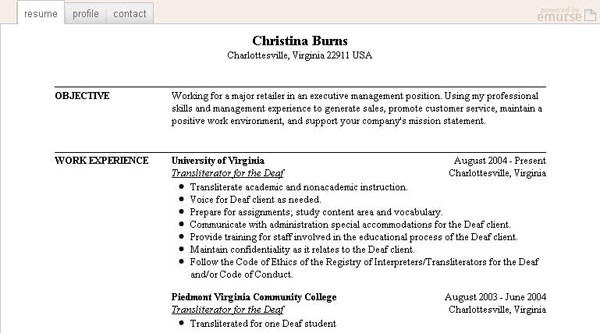
This online resume creator (reviewed previously at MakeUseOf) allows you to create very detailed and well-organized (and more traditional-looking) resumes.
How well are resumes ranked in Google?
- resumes are mainly indexed from the home page (which links to recent and popular resumes) - so unless linked from other sites, your resume can perform rather poorly in Google;
- the resume page title consists only of the full name (the format: Full Name’s Resume);
- each resume is hosted on a sub domain (http://fullname.emurse.com).
How well are resumes organized?
Like I said, Emurse builds more traditionally-looking resumes: more text and less design. Each resume contains plenty of information all displayed on one page - however HTML editing is allowed to make it look more attractive and eye-catching.
3 More Tools to Bring Power to the Right Click Menu (Windows)
Who doesn’t love a shortcut? Thanks to the guy who programmed in the right click menu, we get to take some of them while working or browsing on the computer. Here at MakeUseOf we have looked at some of the ways to add more power to the right click menu.
Earlier we have looked at ways to customize the right click menu on your own or use the free ‘Mmm’ to do it for you. We have also looked at ways to clean up all the rubble from the right click context menu here. But here I am back again looking at three more ways to give my right click menu a booster shot.
Folder Guide

As the name says, navigating through the folders and directories of your hard-drive with the right click becomes easier with this freeware. You can set up your frequently used folders and access them. Also, you can set up some separators to categorize the Folder Guide entries.
Of course, you can set it up through manual additions in the send to folder too but ‘Folder Guide’ just does it a bit more neatly saving you some clicks.
Access the ‘Folder Guide’ menu by right clicking on file, folder background, Windows Explorer, Open/Save dialog boxes, Desktop, or Start Button. Add your favorite folders, sort them in your own order, arrange them with separators and you’ll have quick access at the click of a right button. With a small imprint of just 1.6 MB, Folder Guide is worth a try.
Moo0 RightClicker
Nope, cows don’t take shortcuts. Moo0 RightClicker is just a handy set of improvements for our right click menus. The 4.2 MB free software has a free version and a more feature laden paid counterpart. The free version is a good help as it gives the right click menu some useful add-ons and also allows the user to manage the ones already there.
The program opens with a notice mentioning a bug in Win XP which causes CPU utilization to spike to 100% temporarily (though, I did not catch any…) under certain usage conditions. It gives the option to turn off some ‘Effects’ in Display Properties. The functions are simple to understand. The free version gives two interface options - Simple and Basic.

Here’s a feature list -
- Copy and move files and folders to bookmarked or standard system folders. Bookmarking often used folders is a nice touch.
- Intelligent copying - using the name, path, or contents of an actual file.
- Sort folder contents by numerous attributes.
- Create a duplicate window. (Access it from the File menu of a folder)
- Preview images.
- Arrange neatly with quick-collapsing menus.
- Delete items permanently bypassing the recycle bin.
Moo0 doesn’t remove any of your earlier customizations but lets you add some more. So it integrates the earlier shell entries you might have made. Un-installation is also safe. The only thing I wish is that could have given me a bit more choice against its default lime green color.
FileMenu Tools
The powerhouse for the last mention. FileMenu Tools goes further than the previous two mentioned. It takes the context menu out of the box and literally makes it a file manager. It allows you to either clean up the clutter or throw in a few more options for handling files and folders. Over and above, add your own choice of programs, folders and paths. Also, add your own icons and names through the properties dialog.

Do more with features like -
- Configure built in commands or add customized commands according to the file types you right click on.
- Configure the ‘Send to Menu’ within the FileMenu program.
- A very handy advanced renamer lets you batch rename all files in a folder.
- Synchronize two folders from within Windows Explorer.
- Split-join files and also compresses the parts.
- Find or replace a text for all the files that a selected folder contains.
- Delete only files of a specific type. For example, delete only the ‘.log’ files from the temporary folder.
- Mark locked files (files which are being used by other programs) for deletion with the next system boot.
- Securely shred your files and make them unrecoverable.
- Get a view of folder size through a pie chart.
- Send selected contents as email attachments.
- Add separators and demarcate your right click shortcuts.
These are just some of the utilities packaged inside FileMenu Tools. The greatest advantage beyond the ease of configuration is that the software bundles a lot of disparate utilities in an accessible collection. At an installed size of 6.4 MB and a freeware it’s click worthy.
The choice of decking up your right click menu depends on the kind of power you want to give it. But it’s a certainty that you will be spoilt for choice with the free software available.
Friday, November 14, 2008
Free ISO Creator
Free ISO Creator is a tool to create ISO image from your files and folders.
With Free ISO Creator, you can easily create ISO image from any files and folders (with the subfolders). Free ISO Creator is one of the best solution to create ISO file and it's completely FREE.

[ How to use Free ISO Creator ]
Features of Free ISO Creator
- Create ISO image from files and folders.
- Create UDF/ISO CD DVD image file.
- Create ISO file at super high speed.
- Easy to use, only 3 steps to create ISO image.
- Completely FREE!
MultiMonitor TaskBar A shiny new windows task Bar for your multiple monitors!
Normal Windows XP or Vista:
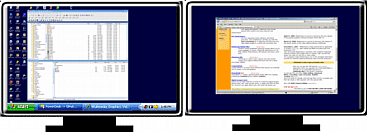
All windows are displayed on the primary monitors taskbar regardless on which monitor they are opened.
With Multimon Taskbar:
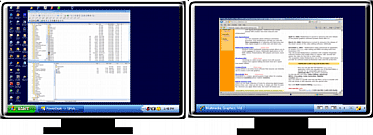
Second Task bar is added to the extended monitor and it displays item from that monitor while primary taskbar displays items from the primary window...
TaskBar (freeware)
- It adds second taskbar to the extended desktop on Monitor 2
- It can add third taskbar to the second Extended monitor if you have 3 monitors setup.
- It shows only applications from that Monitor
- It hides the applications on Monitor 2 and 3 from normal Windows Taskbar
- Adds a Move to Monitor button to windows applications (XP).
- Add Text Clipboard Extender
- Buttons to roll-right the taskbar (good for full screen Remote Desktop)
- Very carefully written, I don't want to crash my own desktop!
AppTimer (Application Startup Timer)
AppTimer will run an executable a number of times and time how long it takes for the application to reach a state where user input is being accepted before exiting the application.
After each run of the application AppTimer will attempt to close the application in an automated fashion while logging the time measurements to a log file.
It's main use is in benchmarking an application's startup time.
Screenshots

Installation
You unzip the downloaded zip file into a directory on your hard disk then double click on the AppTimer.exe to run. There is no further installation procedure. To uninstall simply delete the unzipped files.
Usage details
See the included readme file for details of how to use the utility.
Price
AppTimer is a free utility.
We don't make any warranties about how well it is going to work for your project, or if it is going to work at all, but you are free to get what use you can from it
Known issues
- Some applications may have strange behaviour at startup making it difficult to tell when they have fully loaded and are ready for use. It may not always be possible for AppTimer to be used to time these applications however trying different combinations of the window detection methods may provide better results.
Wednesday, November 12, 2008
Five Best Travel Sites for Cheap Tickets
If you've got travel plans for the upcoming holiday season, the time to book your tickets is now. The question is, where can you find tickets cheap enough to offset the extra $40 you'll have to spend to check your bags and enjoy a snack on your six-hour flight. Earlier this week we asked you to share your favorite travel web site for cheap tickets, and today we're back with the five most popular answers. Keep reading for a breakdown of the best travel sites on the block, then cast your ballot for the one you like best. Photo by alex-s.
NOTE: In an completely unscientific test of each site's prices, I ran a search for a round trip ticket from Los Angeles to Omaha (my most frequent flight) departing on November 15th and returning on the 22nd. I'll end each site's description below with the result.
Kayak
 Kayak is a travel search aggregator, scouring over 140 sites to bring you the cheapest fares it can find. The results are nicely sorted by price, and once the search is complete, you can tweak and filter the results to find the perfect ticket for your needs. Kayak supports email alerts, can search nearby airports, and the Buzz feature is great if you're looking to take a spur-of-the-minute vacation on the cheap. Like most travel sites, Kayak also covers hotels, cruises, and rental cars. My Flight: $207.
Yapta
 Yapta—aka Your Amazing Personal Travel Assistant—is an airline search engine with an emphasis on tracking airline prices before and after you purchase your tickets. Before your purchase, Yapta will track a flight and alert you when it falls below your desired price (a feature available on most of the sites featured here). After your purchase, Yapta will continue tracking the ticket price. If it drops, the site will send an alert if you're eligible for a refund or travel credit. If you're a big Yapta fan, you can even integrate it in your browser with the previously mentioned Yapta Firefox extension or Internet Explorer plug-in. My Flight: $206.50.
Live Search Farecast
 Live Search Farecast is another airline ticket search aggregator similar to Kayak. Farecast sets itself apart by offering price predictions that suggest whether now is the right time to buy your ticket—or whether you should wait. It does this by tracking and analyzing fare histories. Earlier this year, Farecast was purchased by Microsoft, who slapped the Live Search moniker on the front end. My Flight: $216.
Priceline
 Priceline has long been a favorite of bargain hunters and William Shatner fans alike. Priceline made its name with its Name Your Own Price system, and while the Name Your Own Price option is still available, it's been significantly de-emphasized on the site. If you're looking to really low and you don't mind bidding blindly (when you name your price, you don't get to choose departure/arrival times or number of stops, for example), NYOP is a good way to go. Otherwise, Priceline's default search engine still has a lot to offer. My Flight: $206.
Sidestep
 Sidestep is yet another search aggregator that you may find oddly familiar if you're a Kayak user. That's because Sidestep was purchased by Kayak a year ago this December. In fact, from what I can tell, SideStep's search results are the same as what you can get from Kayak—it even sports the same Buzz feature—so it's really just a matter of choosing which one you like the look and feel of more. My Flight: $207.
Wednesday, November 5, 2008
iSCSI in VMWare ESX 3
iSCSI has become a very popular way of having shared storage among several physical or virtual computers. The benefits of shared storage are even greater when combined with the abilities of VMWare such as VMotion, High Availability and Distributed Resource Scheduler.
Below are the basic (and I do emphasize basic) to configuring iSCSI storage with VMWare 3.0. Like any shared storage infrastructure there are a number of possible methods and structures that could change the way that iSCSI is installed and used.
Step 1 - Add in extra Service Console and iSCSI VMKernal
The service console and VMKernal need to be on the same physical NIC on the ESX server. The IP’s for these services need to be on the same subnet as the iSCSI storage device. The pictures below outline the end-result if your iSCSI VLAN were to be 192.168.4.0/24. Note that the service console that you is shown below is the second and therefore additional service console. The original stays unchanged.

Sample End Result
Step 2 - Allow iSCSI traffic through the firewall
The Software iSCSI Client for ESX needs to be allowed through the firewall which is located under the security profile section. If you don't do this then you will not be able to use the service. I found this interface “tricky” to use. Sometimes I would make changes and they wouldn't take effect until the server was rebooted.

Step 3 - Enable Software Initiator Properties
The iSCSI storage adapter needs to be configured. Find the newly created iSCSI Software Adapter on the Storage Adapters tab you will need to:
- Open the properties
- Configure and subsequently enable the iSCSI Initiator
- On the Dynamic Discovery tab you can add in the iSCSI server IP

Step 4 - Create iSCSI targert on iSCSI device
This will depend on your iSCSI hardware as to how you do this. Each manufacturer has their own way of doing this.
Step 5 - Add LUN to target
Links:
VMWare's design guide for iSCSI – short but good: http://www.vmware.com/pdf/vi3_iscsi_cfg.pdf
Really good blog post by David Davis about VMWare and iSCSI:
http://www.petri.co.il/connect-vmware-esx-server-iscsi-san-openflier.htm
How many Global Catalog Servers to have on the network?
How many Global Catalog Servers to have on your network? Where to place those servers? About this things Administrator should have thing at least once :). You could cause severe performance problems or possibly a single point of failure, If there are jast few Global Catalog Servers. At the same time, having too many Global Catalog Servers can also cause performance problems. In this article, you will see some techniques for determining how many global catalog servers you need.
Why Are Global Catalog Servers So Important? (BTW, about this question you could be asked on every Interview :))
Global Catalog Servers, they are simply domain controllers that have been designated to perform the Global Catalog server role. The first domain controller in the forest is automatically assigned the Global Catalog server roll, because every forest requires at least one Global Catalog server. The Global Catalog server performs a variety of tasks, both for Windows and for Exchange. If a Global Catalog server is not available, then nobody will be able to log into the domain except for the Administrator.
Global Catalog server performs some critical functions at the Active Directory level and in relation to Exchange Server it's also very critical.
In order for clients to be able to send and receive mail, both the Outlook client and the Exchange Server must be able to query a global
catalog server. Without access to a Global Catalog server, Outlook clients will not be able to open the Global Address List or resolve the e-mail addresses of message recipients within the forest.
Now let’s talk about placement. Any domain controller that’s running Windows 2000 or Windows Server 2003 can be designated to be a Global Catalog server. I saw networks, where every domain controller act as a Global Catalog server. Equally, this is a bad idea. Global Catalog servers produce quite a bit of traffic applied to the replication process.
Some Network Consultans or System Administrators says, that you should place a Global Catalog Server into any site that contains a server that’s running an application that makes use of port 3268 (Global Catalog lookup port). Exchange Server is such an application, so if you were to follow this rule, then you would want to place a Global Catalog server into any site that contains an Exchange Server.
You can find a Microsoft document that suggests placing a Global Catalog server into each site. I believe that this is the best idea. The fact that clients make use of the global catalog during the logon process. But, Microsoft also says, that a site doesn’t need a Global Catalog server if the site does not contain any servers running Global Catalog dependant applications, such as Exchange or contains fewer than 100 users.
In large organizations with lots of Exchange mailboxes, Global Catalog server could start working VERY hard. Microsoft recommends having one Global Catalog Server for every four mailbox servers.
If you have a single site, single domain network, then it is safe to designate all of your domain controllers to act as Global Catalog servers. Becouse all of the domain controllers contain full copies of the Active Directory you will not get any performance problems by having multiple Global Catalog servers will be minimal.
It is important to make sure that our system uses Global Catalog servers in an optimal manner. Global Catalog servers are so critically important to the Active Directory and to Exchange
BESadmin and ‘Send As’ Right
If you are working with BES (BlackBerry Enterprise Server) you can get a problem, when users cannot send emails from their Blackberry. And, I guess you already familiar with a “Send As Permission” problem :).
So, I created a script, that allows set all neccesasry right to the BESADMIN account. When you run script, you should provide an OU, where the particular user exist and user’s email address.
NOTE: In my script I used linex.exe and dsacls.exe. Just use Google to download those very POWERFUL tools 
@echo off
SET Tools=C:\Tools
SET TEMP=C:\TMP
SET Tools=C:\Tools
SET TEMP=C:\TMP
SET SOU=
SET BES=
SET ou4user=
SET BES-USER=
DSQUERY OU domainroot > %TEMP%\ou.txt
%Tools%\linex -n < %TEMP%\ou.txt
SET /p SOU=”Please type # of OU where the user located: “
SET /p BES=”Please type user’s email address: “
FOR /F “TOKENS=* delims==,OU” %%a in (’%Tools%\LINEX -l %SOU% ^<%TEMP%\OU.txt’) do set ou4user=%%~a
FOR /F “TOKENS=2 delims==,” %%a in (’dsquery * “%ou4user%” -attr mail distinguishedName^|find /i “%BES%”‘) do set BES-USER=%%~a
@echo “%BES-USER%”
dsacls “CN=%BES-USER%,%ou4user%” /G “%USERDOMAIN%\BESADMIN:GR”
dsacls “CN=%BES-USER%,%ou4user%” /G “%USERDOMAIN%\BESADMIN:CA;Send As”
Send keypresses by Launchkey
If you need to send key to the any application, you can use a VBScript, like following example:
set WshShell = WScript.CreateObject("WScript.Shell")
WshShell.Run "calc"
WScript.Sleep 100
WshShell.AppActivate "Calculator"
WScript.Sleep 100
WshShell.SendKeys "1{+}"
WScript.Sleep 500
WshShell.SendKeys "2"
WScript.Sleep 500
WshShell.SendKeys "~"
WScript.Sleep 500
WshShell.SendKeys "*3"
WScript.Sleep 500
WshShell.SendKeys "~"
WScript.Sleep 2500
But, if you want to use a batch script, use a LaunchKey. LaunchKey is a freeware command-line utility that runs an application and sends keypresses to it.
The syntax for using LaunchKey is:
Launchkey "KEYS TO SEND" "APPLICATION TO RUN" ["APPLICATION PARAMETERS"]
as in:
Launchkey "Here is some text." Notepad
"You can send all the normal key character keys as well as special keys like ALT, CTRL, F1-F12 etc. More information about how to send key presses is contained in the accompanying Helpfile."
Download LaunchKey.zip
Cheap (FREE) and Good SAN / iSCSI Storage - OpenFiler SAN Server
| If you want to work / test / learn many of the VMware ESX Server advanced features, like VMotion, VMware High Availability (VMHA), and VMware Distributed Resource Scheduler (DRS), you should have SAN (Storage Area Network). For my Home Lab I'm using OpenFiler. You can find a very good Step-By-Step tutorial about OpenFiler at well know Petri.co.il web site. Article by David Davis - "Use OpenFiler as your Free VMware ESX SAN Server" I just want to add one small part to this tutorial. I think it's not the best idea to use IP address from DHCP on Server, a specially on SAN :). So, I've configured my SAN to use static IP. Here is how to do that: Logon to the OpenFiler console as a root. Run "vi /etc/sysconfig/network" and make the following changes: NETWORKING=yes HOSTNAME=net-nas-01.admininfo.local GATEWAY=192.168.1.1 Run "vi /etc/sysconfig/network-scripts/ifcfg-eth0" and make the following changes: DEVICE=eth0 IPADDR=192.168.1.15 BOOTPROTO=static NETMASK=255.255.255.0 NETWORK=192.168.1.0 GATEWAY=192.168.1.1 BROADCAST=192.168.1.255 ONBOOT=yes Go and modify the hosts file. To modify the hosts file run this command "vi /etc/hosts" and make sure the FQDN names for 127.0.0.1 and the static IP address are set correct. 127.0.0.1 net-nas-01.admininfo.local 192.168.1.15 net-nas-01.admininfo.local For more information go to Openfiler website |
| Running ESX 3.5 and 3i Under VMWare Workstation 6.5 |
| Sunday, 24 August 2008 10:24 | |
| As result of battle between Microsoft and VMWare (for place on Virtualization market), VMWare announced that a new VMWARE ESXi server became FREE. This news generated a lot of interest and many people started to try install VMWARE ESXi on VMWARE Workstation, just to see it and learn. By little Googling you will find a lot of sites, where explained how to run ESX 3.0 server on VMWARE Workstation 6.x, but you will see that this tricks is not working for ESX 3.5. Equally they are working, but you unable to start virtual machine inside ESX. To make ESX 3.5 fully working on VMWare Workstation we need to do the following steps:
OK, now is very important part :). Close VMWare Workstation and got to .vmx file of your just created VM. Open .vmx file in Notepad and add (change) the following lines: ethernet0.virtualDev = “e1000″ monitor.virtual_exec = “hardware” monitor_control.restrict_backdoor = “true” Save .vmx file, start VMWARE Workstation and you are ready to start install a new Vmware ESX 3.5. |
XenServer 5 Has Arrived (130 new features)
Better, Stronger, Faster.
XenServer boasts over 130 new enhancements to accelerate the delivery of server workloads. We’ve added automated high availability, made XenServer even faster and included dozens of XenCenter management console enhancements for a radically simple XenServer user experience. With these and other improvements, XenServer can bring the benefits of virtualization to every server in the enterprise.
Express Unleashed.
We’ve taken the brakes off of XenServer Express Edition by removing the virtual machine and memory limits from the industry’s most powerful, free virtualization technology. Download XenServer Express today and get started. Or download a 30-day trial of XenServer Enterprise Edition to test drive all of XenServer’s great new enterprise features.
Running ESX 3.5 and 3i Under VMWare Workstation 6.5
As result of battle between Microsoft and VMWare (for place on Virtualization market), VMWare announced that a new VMWARE ESXi server became FREE.
This news generated a lot of interest and many people started to try install VMWARE ESXi on VMWARE Workstation, just to see it and learn.
By little Googling you will find a lot of sites, where explained how to run ESX 3.0 server on VMWARE Workstation 6.x, but you will see that this tricks is not working for ESX 3.5. Equally they are working, but you unable to start virtual machine inside ESX.
To make ESX 3.5 fully working on VMWare Workstation we need to do the following steps:
OK, now is very important part :). Close VMWare Workstation and got to .vmx file of your just created VM. Open .vmx file in Notepad and add (change) the following lines:
ethernet0.virtualDev = “e1000″
monitor.virtual_exec = “hardware”
monitor_control.restrict_backdoor = “true”
Save .vmx file, start VMWARE Workstation and you are ready to start install a new Vmware ESX 3.5.
This news generated a lot of interest and many people started to try install VMWARE ESXi on VMWARE Workstation, just to see it and learn.
By little Googling you will find a lot of sites, where explained how to run ESX 3.0 server on VMWARE Workstation 6.x, but you will see that this tricks is not working for ESX 3.5. Equally they are working, but you unable to start virtual machine inside ESX.
To make ESX 3.5 fully working on VMWare Workstation we need to do the following steps:
- Download and install Workstation 6.5 (Right now you can download RC version from official version from www.vmware.com)
- Inside Workstation 6.5 create a new VM, but keep in mind select Custom in "New Virtual Machine Wizard. As Hardware Compatibility select Workstation 6.5. You need to select an Redhat x64 Linux version. Set to use One CPU. At least 1024 MB ram. As a Virtual disk type select SCSI and as SCSI controller select LSI Logic (Recommended).
OK, now is very important part :). Close VMWare Workstation and got to .vmx file of your just created VM. Open .vmx file in Notepad and add (change) the following lines:
ethernet0.virtualDev = “e1000″
monitor.virtual_exec = “hardware”
monitor_control.restrict_backdoor = “true”
Save .vmx file, start VMWARE Workstation and you are ready to start install a new Vmware ESX 3.5.
Compare Windows 2008 Server Core Installation Options
 | KEY: |
|
|
|
 = Not Available
  = Partial/Limited
  = Full
 | Server Role | Enterprise | Datacenter | Standard | Web | Itanium |
|---|---|---|---|---|---|
| Web Services (IIS)* |  | | | |  |
| Print Services |  | | | | |
| Hyper-V | | | | | |
| Active Directory Domain Services | | | | | |
| Active Directory Lightweight Directory Services | | | | | |
| DHCP Server | | | | | |
| DNS Server | | | | | |
| File Services | | | | | |
*ASP.NET is not available with Server Core installation option in any edition
Subscribe to:
Comments (Atom)