Monday, April 19, 2010

Comodo Time Machine

Comodo Time Machine

Quickly restore your computer to an earlier point in time.

  • Comodo Time Machine
  • Features

    • Comprehensive system recovery
    • Boot-up console
    • Easily create system snapshots
  • Price: 100% Free

    Free Download

  • Overview

  • Features

  • Frequent
    Questions

  • Support

  • Video

Why use Comodo Time Machine (CTM)?

Comodo Time Machine (CTM) is a powerful system rollback utility that allows users to quickly restore their computers to an earlier point in time. CTM 'snapshots' are a complete record of your entire system (including the registry, critical operating system files and user created documents).

Layered Security
  • Schedule automatic snapshots to be taken at regular intervals
  • Roll back to the last known working state in the event of virus attacks or crashes
  • Take snapshots of your computer before large installations or system maintenance

Software Developers and testers can easily restore test systems to the default configuration after each deployment without the need to manually uninstall each application. Home users can even let the kids run amok on the family PC for an afternoon and be safe in the knowledge that any damage can be instantly undone and all files recovered.

Comodo Time Machine features an intuitive, friendly interface which offers quick and easy access to all functionality in the application. Additionally, it also features a sub-console that can be accessed before Windows starts and a Quick Operation console containing shortcuts to important and commonly executed tasks.

Supported Operating Systems:

  • Windows 7 (32 and 64 bit)
  • Windows Vista (32 and 64 bit)
  • Windows XP with service pack 2
    or higher (32 and 64 bit)
  • Windows Server 2003
    (32 and 64 bit)
  • Windows Server 2008
    (32 and 64 bit. Except Windows Server 2008 Core)

Minimum Hardware:

  • Intel Pentium III Processor or higher
  • 128 MB RAM

Free disk space:

  • 4 GB (minimum) / 10 GB (recommended)

Price: 100% Free

Free Download

File Details

Size 20.1 MB

Release Notes:

Release Date: March 29, 2010
Please see latest release notes

Tuesday, April 6, 2010

Download Windows 7 System Recovery Discs

With Windows 7 released and currently making its way to shelves in time for the holiday season, we've taken this opportunity to upgrade our copy of the official Windows System Recovery Discs for compatibility with Windows 7.

If you're like most PC users, you probably got Windows 7 with a new PC or laptop. And if you're like 99% of the population, you get your new machines from one of the major manufacturers. Dell, Acer, HP, Toshiba, Lenovo; who all have one thing in common: they don't give you a real Windows 7 installation disc with your purchase. Instead, they bundle what they call a "recovery disc" (that's if you're lucky - otherwise you'll have a recovery partition instead) with your machine and leave it at that.

It doesn't matter that you just paid a thousand dollars for a machine that comes with a valid Windows 7 license - your computer manufacturer just don't want to spend the money (or perhaps take on the responsibility) of giving you a Windows 7 installation DVD to accompany your expensive purchase.

The problem is, with Windows 7, the installation media serves more than one purpose. It's not just a way to get Windows installed, it's also the only way of recovering a borked installation. The Windows 7 DVD has a complete "recovery center" that provides you with the option of recovering your system via automated recovery (searches for problems and attempts to fix them automatically), rolling-back to a system restore point, recovering a full PC backup, or accessing a command-line recovery console for advanced recovery purposes.

Thankfully, Microsoft seems to have realized this problem, and have thankfully made a recovery disc for this purpose. It contains the contents of the Windows 7 DVD's "recovery center," as we've come to refer to it. It cannot be used to install or reinstall Windows 7, and just serves as a Windows PE interface to recovering your PC. Technically, one could re-create this installation media with freely-downloadable media from Microsoft (namely the Microsoft WAIK kit, a multi-gigabyte download); but it's damn-decent of Microsoft to make this available to Windows' users who might not be capable of creating such a thing on their own. You can make your own copy from Windows 7 Ultimate Edition, but now you have an easier alternative.

NeoSmart Technologies is hosting a copy of the Windows 7 Recovery Disc for your convenience. It's a 143 MiB download (165 MiB for the 64-bit version), and in the standard ISO format, ready to burned directly to a CD or DVD. Don't wait until your PC crashes to download a copy! Download and burn your recovery disc today, so that when the time comes, you'll be ready!

What it does: The Windows 7 Recovery Disc can be used to access a system recovery menu, giving you options of using System Restore, Complete PC Backup, automated system repair, and a command-line prompt for manual advanced recovery.

What it doesn't do: You cannot use the Windows 7 Recovery Disc to re-install Windows - it only fixes (not replaces!) Windows.

Why you need it: If you bought your PC from a major retailer, you didn't get this CD with your hefty purchase.

Partition Wizard

The free privilege elevation solution from ScriptLogic

The free privilege elevation solution from ScriptLogic

Best practices for client security requires administrators to run users with the least privileges necessary to get their jobs done. But some applications, ActiveX controls, and application updaters require administrator rights, preventing least privilege user practices. Native tools lack application level granularity.

If one application needs administrative rights, you have to run the user as an administrator. Privilege Authority provides the granularity native tools lack. Now, run users with the least privileges possible, and elevate applications and ActiveX controls only when needed.

Features and Benefits

  • Elevate applications, Windows features and Active X controls

    Elevate applications, Windows features and Active X controls

    Application updaters make it easy to make sure your users are always running the most current version of a product, but they’re often designed to require administrative rights. So an updater, even for a common, free application, can require you to run all of your users with administrative rights. With Privilege Authority, you can lock down the user, and elevate just that application updater. Some windows features, even those as simple as changing the time or time zone, can require administrative rights. Easily elevate those features you need and keep the rest locked down. When surfing the Internet, some Active X controls are essential and others are harmful. With Privilege Authority you can block general Active X controls and only allow the ones you approve in advance.

  • Flexible, rules based elevation

    Flexible, rules based elevation

    Privilege Authority uses elevation rules to determine what applications, features or controls are elevated to higher privileges. These rules can include the common rules included with Privilege Authority, customized versions of the common rules, or completely custom, user-defined rules. Rules can be copied, shared and moved easily between test and production networks.

  • Leverage existing Group Policy infrastructure

    Leverage existing Group Policy infrastructure

    Privilege Authority elevation rules are attached to group policies, to ensure reliable delivery to clients. This gives administrators the flexibility to assign rules where needed by attaching them only to the group policies going to the intended clients.

  • Privilege Authority community

    Gain additional value from the Privilege Authority community

    PrivilegeAuthority.com is the home of the Privilege Authority community of administrators. Create a useful rule? Share it with other users. Looking for a rule? Check out the Rules Exchange. Get tips on how to get the most out of Privilege Authority or just get support from the rest of the community.

*Privilege Authority is provided as a free product to the ScriptLogic community. It is not supported directly by ScriptLogic, but is supported by the Privilege Authority community of users. Community support is available at Privilegeforum.scriptlogic.com

Install Tracer

Every time you install a new program, you make a leap of faith. The installation utility adds some files to your system, replaces other files, and changes elements of the Registry and essential INI files. You hope it will make those changes cleanly and correctly and will record them for use by the program's uninstall utility. But in case it doesn't, This tool can provide a record of exactly what the install program did. (Size: 570 KB)

MakeMeAdmin

MakeMeAdmin
When you run MakeMeAdmin.cmd, you get a Command Prompt running under your normal user account, but in a new logon session in which it is a member of the Administrators group. This Command Prompt and any programs started from it use your regular profile, authenticate as you on the network, but have full local admin privileges. All other programs continue to run with your regular, unprivileged account. (Size: 9 KB)

Sunday, April 4, 2010

MDT 2010


DOWNLOAD A FREE COPY OF THE SECOND TRUESEC DEPLOYMENT CD


This second Deployment CD has the following detailed Step-by-step Guides and Video Tutorials:

MDT 2010 Lite Touch Deployments (just the free tools)
- Installing the server for MDT 2010 Lite Touch
- Creating a Windows 7 reference image using Lite Touch
- Deploying a Windows 7 image using Lite Touch
- Dynamic Settings, creating and using the deployment database

MDT 2010 Zero Touch Deployments (deployment with ConfigMgr 2007 SP2 R2)
- Installing the server for MDT 2010 Zero Touch and ConfigMgr 2007 SP2
- Creating a Windows 7 reference image using ConfigMgr 2007 SP2
- Deploying a Windows 7 image using ConfigMgr 2007 SP2
- Dynamic Settings, creating and using the deployment database

Additional Presentations
- New features in MDT 2010
- Upgrading MDT 2008 to MDT 2010
- Migrating Windows XP to Windows 7

Microsoft SharedView is a fast, easy way to share documents and screen views with small groups of friends or coworkers

I used sharedview now from the start and I must say it is great easy to handle. even for old people like granddad’s who are stuck with the computer but you don’t wanna go there to spend your sunday.

You can use shareview

image

After you signed in with your live account you can do a start new session

image Press start and you are done.

image now you started a session others can join easy by using the pasport nome

image or do an invite image

you can share desktop image now you can take control on the others desktop to help or just to show a powerpoint or tool demo, anything you want.

Cool stuff and easy to use check it out. It is still beta get it Download SharedView Today

Go here for the complete beta site :http://connect.microsoft.com/site94

Windows 7 "Windows XP mode"

Install this update to remove the prerequisites required to run Windows Virtual PC and XP mode

Update for Windows 7 for x64-based Systems (KB977206)

You install Windows Virtual PC and Windows XP Mode on a computer that is running Windows 7. When you try to start or configure Windows XP Mode in Windows Virtual PC, you receive one of the following error messages.
Note You may also receive one of the following error messages when you try to start or configure any other virtual machine in Windows Virtual PC.

  • Unable to start Windows Virtual PC because hardware-assisted virtualization is disabled

    Collapse this imageExpand this image

    Unable to start Windows Virtual PC because hardware-assisted  virtualization is disabled

Overview

Install this update to remove the prerequisites required to run Windows Virtual PC and XP mode. The prerequisites include a processor which supports hardware assisted virtualization (HAV) which is also enabled in the BIOS. After you install this item, you may have to restart your computer.

Windows6.1-KB977206-x64.msu

All supported x86-based versions of Windows 7

Collapse this imageExpand this image

DownloadDownload the update package now. (http://www.microsoft.com/downloads/details.aspx?FamilyID=837f12aa-1d37-464e-ae59-20c9ecbebaf6)

All supported x64-based versions of Windows 7

Collapse this imageExpand this image

DownloadDownload the update package now. (http://www.microsoft.com/downloads/details.aspx?FamilyID=e70dd043-e262-43c0-a002-446567f1e2b4)

MDT Debugger

When creating and configuring an LTI deployment solution there is one thing that always bugs me immensly: debugging custom scripts. Writing the scripts is easy, but debugging them is a whole different experience. The reason is simple, to debug a script you normally need to launch it from within the MDT environment (during the deployment). Consequently, it can be quite hard and very slow to iron out any errors that they (might) contain because of the need to run a full deployment of a computer, just to be able to do some testing.

This isn't the actual part that bugs me though. The annoying part is when the script fails and MDT ends, all because of a silly mistake made in the script; this for me is the frustrating part that could at times drive me insane. Because MDT has now terminated, pretty much the only sure way to re-test the script is to re-run the deployment; vastly slowing down the debugging time.

0.jpg

I should point out that this is no fault of MDT, it is all mine; after all, I was the one who put the error in the script! But, because of the way MDT works, the debugging of these custom scripts can be labourious task.... until now! [cue drum-roll] I would like to present version 0.1 of the "MDT Debugger"! This nifty little tool makes debugging most custom actions, script or not, simpler and prevents MDT from terminating with the red error screen if the custom action has failed.

The MDT Debugger sits in-between MDT and your custom script and intercepts the return code that is normally sent back to MDT from your custom action. It then displays the error code and allows you to either accept and return it to MDT, edit it before returning it to MDT, or to relaunch the custom action again. This later option gives you the opportunity to fix any errors in the script/action and then relaunch it - thus eliminating the need to relaunch the deployment process from the very beginning just to re-test the custom action.

More on source :http://blogs.technet.com/deploymentguys/archive/2010/03/22/mdt-debugger.aspx

Windows 7 Godmode

Windows 7 Godmode -here are several post on the web on godmode I did not use it before but I did some testing with it and like it. so below is a list of the strings that you can use With a link to a microsoft site for all the options.

How does this work Create a folder on your desktop and name it GodMode.{ED7BA470-8E54-465E-825C-99712043E01C}

but the name before the dot can be self named

image

Below is a list of additional useful folders that you can create using the same process described above. I have named the folder accordingly to give you a clue as to what each one does:

LOCATION.{00C6D95F-329C-409a-81D7-C46C66EA7F33}
BIOMETRIC.{0142e4d0-fb7a-11dc-ba4a-000ffe7ab428}
POWER.{025A5937-A6BE-4686-A844-36FE4BEC8B6D}
NOTIFICATION.{05d7b0f4-2121-4eff-bf6b-ed3f69b894d9}
CREDENTIALS.{1206F5F1-0569-412C-8FEC-3204630DFB70}
NETWORKAPPS.{15eae92e-f17a-4431-9f28-805e482dafd4}
DEFAULTS.{17cd9488-1228-4b2f-88ce-4298e93e0966}
ASSEMBLIES.{1D2680C9-0E2A-469d-B787-065558BC7D43}
WIRELESS.{1FA9085F-25A2-489B-85D4-86326EEDCD87}
NETWORK.{208D2C60-3AEA-1069-A2D7-08002B30309D}
DRIVES.{20D04FE0-3AEA-1069-A2D8-08002B30309D}
PRINTERS.{2227A280-3AEA-1069-A2DE-08002B30309D}
REMOTE.{241D7C96-F8BF-4F85-B01F-E2B043341A4B}
FIREWALL.{4026492F-2F69-46B8-B9BF-5654FC07E423}
PERFORMANCE.{78F3955E-3B90-4184-BD14-5397C15F1EFC}

image

Canonical Names of Control Panel Items

As of Windows Vista, each Control Panel item is given a canonical name for use in programmatically launching that item. This topic lists each Control Panel item, its canonical name, and its GUID.

Windows 7 Control Panel Canonical Names

The following canonical names are defined for Control Panel items in Windows 7. All names are also valid on Windows Vista unless specified otherwise. Not all Control Panel items are available on all varieties of Windows and some Control Panel items might appear only when appropriate hardware is detected. These canonical names do not change for different languages. They are always in English, even if the system's language is non-English.

http://msdn.microsoft.com/en-us/library/ee330741%28VS.85%29.aspx

Deploying Microsoft Windows 7 with MDT 2010 and AIK 2010

Installing Windows 7 is not hard when installing fresh, it’s pretty fast and easy. But when you’re deploying it in an organization, you should probably automate as much as possible, including the installation of software after the operating system. There are various levels of automation you can set up for Windows 7 deployments, but what I’ve done is some very basic setup using the Microsoft Deployment Toolkit 2010 that works for me without going too deep into setup and configuration–remember I’m trying to save time! I’m not doing a fast deployment and I’m OK with some manual tweaks at the end, I just want to make the initial load faster and preinstall some applications. There are several other resources you can look at for a more in-depth view of the options and configuration; I’m just going to polish the IRC chat I had with Justin Moore earlier mentioning an overview of the process as I did it, along with a list of silent install commands for the apps I’m auto-installing at the end of deployment. For more depth, try these that either I’ve used or friends have mentioned:

First I downloaded MDT 2010 from Microsoft, installed it and then opened the Deployment Workbench. You’ll need the AIK (Automated Installation Kit) for Windows 7 as well for some of the steps later, which is huge (1.7 GB), so you might as well get that started downloading now, too.

What I did to learn is I found some Microsoft pages with info on MDT and some videos that showed the basics, and I watched/followed one of them, but I don’t recall exactly which video it was that I found. You don’t want to focus on the AIK, I did a while back and it’s more for OEMs like Dell making system images for presale. Similar tools; the MDT uses AIK but has the Workbench that you do most stuff from (or that I did most stuff from :-)

I did read the help in Workbench a lot, and did some Googling, plus that walkthrough video that I can’t seem to find. The documentation built-in to MDT is actually pretty good, I recommend digging in. The basic idea is you need to know what steps to go through in the Deployment Workbench. You aren’t necessarily creating an “image” for deployment as you are making the installation more automated, providing install media from a network share and also packaging some applications with silent installs together. You can optionally build a Windows 7 box, capture it with ImageX, and pull that into MDT to deploy (with or without additional applications installed during deployment) but I didn’t go that far, I’m using a stock Windows 7 Enterprise image (I imported both the 64-bit and 32-bit install discs).

Basically in MDT, you go to Deployment Shares, and create a new one. You’re basically creating a network share that will hold all the install files. You take the Windows 7 DVD for example, and Import it into the Operating Systems “subfolder” of the Deployment Share you create within MDT, and it copies the disc into a subfolder of that share for you and lets you set some properties and name the image. I haven’t done so, but there’s another folder called Out-of-Box Drivers you can import drivers into for your specific hardware.

As for application install after deployment, there were two applications I couldn’t get to install silently and thus won’t work to be installed automatically. Those two apps were iTunes and Shelby v5 (our Church Management System). Shelby doesn’t have a silent install option but it’s easy to manually install afterwards. iTunes is supposed to pass your arguments to it’s .exe installer into the .msi files inside, but it failed for me every way I tried it (always left some component uninstalled) so I gave up. You can use 7-Zip to extract the iTunes install file into it’s component .msi files and manually install them (careful of the order) if you want, which works but is “unsupported” by Apple (not that I’ve ever contacted them for support). For now, I’m not installing iTunes automatically either. I spent a few hours on iTunes so I’m pretty confident of how messed up it is :-)

In general, anything you can install silently with command line arguments will work, and anything else won’t. For Adobe Reader, I downloaded Adobe’s Customization yep Reader works fine; I actually used the Adobe Customization Wizard to make an .mst (MSI transform) and install the version with the transform so my preferences are applied and the transform automatically specifies a silent install (based on how I configured it in the wizard).

Within MDT’s Deployment Workbench, inside your Deployment Share’s Applications folder, you add applications that you want to be able to select to install during each deployment. You can create folders to organize the applications (as they display for you to select during deployment), and you can show or hide applications as you wish. You can also crate Application Bundles, which basically install a group of other applications you’ve already defined. You can use both features together to create applications but hide them (even in their own folder, like “Linked Only” or “Bundled Only” or some such), but put them all in a bundle with one name for easy selection at install time. I also created separate folders for apps that have both a 32-bit version and a 64-bit version so I can select the apppropriate one for each system as needed.

For example, I created a Mozilla Firefox application, and one each for Adobe Flash 10 ActiveX and Plugin versions (you must complete a licensing agreement just as for Adobe Reader to get the .msi versions of the ActiveX and Plugin versions of Flash for deployment like this). I hid them and put them in a subfolder, but created a “Firefox and Flash Player” app in the root that is just a Bundle that installs all three at one time, and it works great.

The Deployment Share has another “subfolder” in the tree called Task Sequences. You’ll want to create a Task Sequence for each OS (one for 32-bit and one for 64-bit in my case), giving each sequence a unique number (I just started at one, then used two for the second one, etc.). Make it a Standard Client Task Sequence (the default in the wizard), select the OS version at the next step, and optionally specifiy a product key (you can enter this during deployment or after install as well). Fill out some basic organization name info and default IE homepage, then set a Local Administrator password (optional–I left this blank here and specify it at install time in the wizard as well), and click Next one last time to create the Task Sequence.

Once your apps are defined as well as your task sequences, and your operating system install images are imported, right-click on the name of the deployment share under the Deployment Shares root in the Workbench, and choose to Update Deployment Share. This wizard will create the stuff needed to actually deploy from the share, including the LiteTouch boot images (images are also created in .wim format, and I imagine you can set it up in WDS (Windows Deployment Services) on Windows 2008 (or 2003 with updates) to use PXE booting to deploy as well if you want to get into that). I’m using the boot CD method. After the Deployment Share Update completes, use Windows Explorer to browse to the deployment share folder, and then go to the Boot subfolder. You should find a LiteTouchPE_x86.iso file and a LiteTouchPE_x64.iso file as well as the .wim versions and .xml configuration files as well. Burn the .iso files to CDs (Windows 7 support right-click-and-burn for ISOs, plenty of free options for other OSes).

Now you can boot whichever version you want on a computer, and depending on the architecture version of the CD each will only give you the OS options that are compatible on the deployment share. Basically you boot to a UI from the LiteTouch boot disc that asks for username/password/domain to access the Deployment Share. The share location is all hardcoded during the Update Deployment Share process. I don’t have it in front of me and haven’t done it since Monday, but the basic steps it goes through are: It asks for computer name, and whether you want to join the domain (if you do, it prefills the same user/pass/domain you entered earlier for share access which is handy). Then you pick which OS from the list, and on the next screen it shows you a list of apps in the folders you set up earlier (this list is pulled from the share, so if you Update the share later with app changes you don’t need to burn the disc again, in case that’s not obvious). You just check the boxes of the ones you want (like I have a 32-bit and 64-bit 7-Zip app, and I have to select which. Also, my VIPRE antivirus app has two installers depending on if I want it to be in the Laptops or Desktops group by default, so I pick the right one as well).

Then hit Finish, and come back in about an hour or so depending on the system, and it’s logged in as Local Admin with a status window showing you any errors (or not) from the app installs. I just did it for a new laptop on Monday, was very easy! I still had to install some drivers since I didn’t add them to the deployment share.

Here are the apps I got to install silently: Adobe Reader 9.2, Firefox 3.5.5, Flash Player 10 (plugin & ActiveX), CDBurnerXP 4.2.7.1801, Pidgin 2.6.4, LogMeIn Free 4.0.982, RDP Enable Script (custom batch file that enables RDP and firewall hole for it), VIPRE, 7-zip, and Office Enterprise 2007 (customized with .mst). The Deployment Workbench will actually let you create an Office 2007 customization and run the wizard and everything for you right from the app properties, which is nice, though I had my own .mst already that I used. For each app I created I selected the option to create an Application with Source Files so it would copy the whole install folder to the Deployment Folder. Also, there’s some stuff you can do that lets you automatically run the USMT on XP for example, backing up user profile to a folder on the hard drive or on the network, then have the MDT deployment run USMT again restoring state after the install, all automatically…I saw it in the video I watched but didn’t get it working (I didn’t try).

Here are the silent install commands I used for the apps I got working, for reference:

Adobe Reader 9.2
msiexec /i AcroRead.msi ALLUSERS=TRUE TRANSFORMS=AcroRead.mst /quiet
Microsoft Office Enterprise 2007
setup.exe
You can use the Office Products tab when editing the application definition to customize the app, or if you already have a .mst transform, put it in the Updates folder inside the Office installation structure and it will be automatically applied, no need to pass it in as an argument.
CDBurnerXP (the .msi, available as a separate download)
msiexec /i cdbxp_setup_4.2.7.1801.msi AI_DESKTOP_SH=0 AI_QUICKLAUNCH_SH=0 AI_STARTUP_SH=0 VIEWREADME=0 /qn
Pidgin
pidgin-2.6.4.exe /DS=0 /SMS=1 /S
LogMeIn Free (I’ll leave you to get it; the way I do it it prompts for the account to join it to after install, but it’s possible to find ways to make it auto-join to a LogMeIn.com account)
msiexec /i LogMeIn.msi /qn
Sunbelt Software VIPRE Enterprise (create MSI deployment files from the console)
MSIEXEC /I SBEAgent-ProfileNameHere.msi ALLUSERS=TRUE /quiet
7-Zip 32-bit (.msi is available if you dig on their site as a separate download, default for 32-bit is .exe)
msiexec /i 7z465.msi /qn
7-Zip 64-bit
msiexec /i 7z465-x64.msi /qn
Mozilla Firefox
Firefox Setup 3.5.5.exe -ms
Adobe Flash Player 10 for IE (ActiveX)
msiexec /i install_flash_player_10_active_x.msi /qn
Adobe Flash Player 10 for Firefox (Plugin)
msiexec /i install_flash_player_10_plugin.msi /qn
Java (get the FULL OFFLINE installer here) (thanks to Justin Moore for finding this one and commenting!)
jre-6u17-windows-i586-s.exe /s ADDLOCAL=ALL

Link

Link2


Registry Cleaner

How many errors does your computer have?
Your PC crashes for no apparent reason. You keep receiving error messages and don't know why. Your PC runs much slower than when you first bought it. Are you frustrated by your computer's bad performance? Do you really want an instant solution?
Problems with the Windows Registry are a common cause of Windows crashes and error messages. Registry problems can occur for many reasons, including references left behind after uninstalling; incorrect removal of software; missing or corrupt hardware drivers; or orphaned start-up programs. This will significantly increase the Registry size and slow down your computer, because Windows will need more time to load, search, and read data from the Registry.
Before you start looking for a new computer, try running a Digeus Registry Cleaner on your system to repair the backbone of your machine. Computers perform best when they receive regular and professional maintenance.
This award winning software starts by conducting a deep scan of your registry, checking for file extension errors and other registry conflicts. With Digeus Registry Cleaner you'll see immediate increases in performance and decreases in system conflicts.
Here is the list of the most commonly reported computer problems:
Slow Boot up
Longer Machine Response Time
Unexpected System Crashes
BSOD (Blue Screen of Death)
Unresponsive System
Slower Internet Browser Response
Slow Start Up of Your Favorite Software
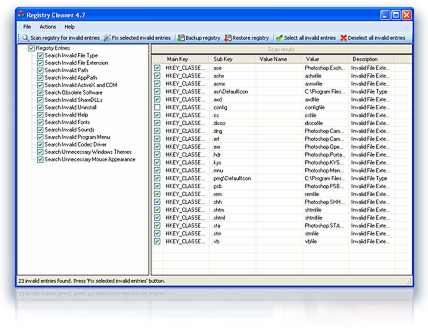
Main screen

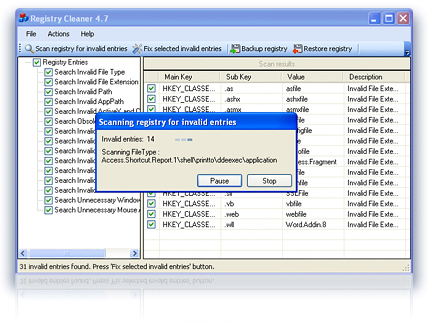
Scanning registry for errors

Link

Win Macro

WinMacro, a Macro recorder/player for Windows by S. Senthil Kumar WinMacro is a simple Macro recorder/player for Windows written in Microsoft Visual C++ 6.0. It can record whatever you do at your Windows Desktop, and can replay them exactly. It doesn't record video, instead it uses windows hooking mechanisms to monitor your mouse and keyboard events, and plays them back. Therefore the recorded file is much smaller than what would be if you recorded live video, typically in the range of kilobytes.

If you are wondering what use such software will be, you'll be surprised to know it's power. WinMacro can be used to automate everyday tasks that you need to repetetively. You only have to look at Word or Excel to know how useful it is. I personally use WinMacro to connect to the internet using dialup, open browser windows and type URLs for checking my mail. All I had to do was do that once, and record the whole thing. The next time, I simply play that file back, and everything takes place automatically.

You can use it to give a practical demonstration as part of a tutorial. Just imagine, instead of instructing users to go to Start->Programs->blah blah, you can show the whole thing like somebody sitting nearby. You do what you want your users to do once, record it, and simply give the file as part of the tutorial. Users can then play back the file to get first hand knowledge. You can even use it for testing purposes, say to test a GUI. You needn't keep moving the mouse or banging the keyboard, WinMacro can do it for you.

And it can be just plain fun watching the mouse move by itself and keystrokes appearing all by themselves. I'm giving the source also as part of the download, so you may tweak it to do whatever you wish. The source is very well commented, so you'd have no problem going through it.

How to use WinMacroUsing WinMacro v1.2

WinMacro v1.2 adds to the features of the previous version of WinMacro. To download the new version, go to Download.
To Record
  • Type the filename to record to (or use Browse to select an existing file). Existing files will be overwritten.
  • Click Record to record to the file
  • When you want to stop recording, press the Pause/Break key. You may also use Ctrl+Esc or Ctrl+Alt+Del.

To Playback
  • Type the filename or use Browse to select an existing file to playback.
  • Click Playback to playback from the file. WinMacro minimizes itself to the taskbar and starts playing back events from the file.
  • After playback is over, WinMacro restores itself to the desktop and pops a message box indicating "Playback Over". In case you want to interrupt playback midway, press Ctrl+Esc or Ctrl+Alt+Del.


The Options button throws up a dialog box like this. This is what has been added to this version, UI wise.


To Repeat Playback
To repeat playback, check the "Repeat Playback" checkbox and type in the no. of times you want to repeat playback in the "No. of Repetitions" textbox. Remember, it's the number of repetitions, so if you type 1 in there, WinMacro will play back the file twice.

To Adjust Playback Speed
Warning: Speeding up playback may not exactly reproduce recorded events. Read on to know why.
The default setting is "Playback Events at Normal Speed", which means events are played back at the same speed at which they occurred while recording. Click the "Playback Events at My Own Speed" to adjust playback speed. The value you give in the "Time Interval" textbox determines the speed. Positive values slow playback by increasing delay between events, while negative values reduce them, thereby speeding things up.

The "Add to Recorded Time" checkbox is checked by default. This option adds the time interval value you give (positive or negative) to the original delay occurred while recording. So this speeds or slows things relative to the original speed. If you uncheck the "Add to Recorded Time" checkbox, WinMacro plays events at a constant speed as determined by the Time Interval value. The original delay while recording is not taken into account at all, the delay between events is now constant and equal to "Time Interval".

The reason why increasing playback speed may not replay events correctly is this. Assume that while recording, you opened Notepad and typed something into it. If you playback at normal speed, the delay between clicking Notepad and opening of application is preserved. But if you playback at increased speed and the delay gets lesser than the time required by Notepad to load, keystrokes and mouse events to the application will not reach it until it loads. In general, if your speed is too quick for other things to happen (like applications loading, or a menu expanding), it might cause trouble, so please take care while running at increased speed.


Using WinMacro v1.0


If you are going to record,
  • Type the name of the file you want to record into, directly or by selecting it by clicking Browse in the Record section.
  • Click the Start Recording button. Once you click it, the button will get disabled.
  • Do whatever you wanted to record.
  • When you are finished, press Ctrl+Esc.


If you're going to playback
  • Type the name of the file you want to playback, directly or by selecting it by clicking Browse in the playback section.
  • Click the Playback button.
  • The application then takes control of the mouse and keyboard and begins to play back the actions stored in the file. Once it's finished, a message box pops out, which says "Playback Over". The application returns control back to you.
  • If you ever wanted to interrupt playback (or recording), press Ctrl+Esc or Ctrl+Alt+Del
That's all there is to it.

Download


Do it Again

Do It Again is a free and simple program that allows you to make your computer automatically perform a task for you, whenever you want.

If there is something that you do on your computer over and over, and you do it exactly the same way every time (such as backing up your pictures, checking web-based email for new messages, etc.), you can tell Do It Again how to perform that task (by doing it once yourself to create the new task). Then you can run that task whenever you want and Do It Again will automatically click the buttons and press the keyboard keys (in exactly the same way as when you created the task), while you sit back and watch the task being performed on the screen.

This is also called macro or automation software, as it allows you to record a macro, then play it back to automate the actions of that macro.

Click the links to the left to learn more about Do It Again and to download it for free.


Network Monitor

Network Monitor ,This is not a typical program out here. This is a "system" a conglomeration of several programs to make up a network monitoring system.

This is an ever evolving monitoring system(as most of the tools out here are). Changed by input from you.

I used this system, or should I say, one of my previous employers used it to monitor 230 servers and several switches for about 4 years. It was finally replaced by NetIQ (a system that was more than a $100,000) and yet this was still left running for several months until they were sure the new system would provide the same reliability.

NOTE: This versions setup routine is a little buggy. If you have issues please address them in the support forum. I'll do my best to get you set up.


Immediate Uses___________________________________________________________________________

  • This is a full fledged Monitoring system. It will check, system availability, disk space, running services and more. It will alert you based of the settings you define; when it finds a problem. It will automatically restart services that you list as critical. It will automatically try to clean up a hard drive if space is running low.
  • You could definitely buy a system that has more bells and whistles but this one is free.
  • Monitor every server in your network (best for Windows servers).
  • Monitor perimeter devices (ping only)

Instructions______________________________________________________________________________

This program is a "work in progress". I am continually changing it, updating it and adding features. I rely on other engineers to let me know what they need (that's within the limits of Winbatch) so I can improve it. I have added the source files out here, they are:

Please feel free to copy these and improve them and send them back. if the improvements are valuable I will definitely compile them to the downloads. Also I will make the code available on this site with your name attached to it so any one can download it.

  1. Download and unzip the files.
  2. Open the "Monitor5" folder and double click on the file "Monitor_Setup.exe".
  3. The Setup program will open. As shown below (click on it for a larger veiw)


  1. Now enter the data as asked on the setup screen. Remember any setting your not sure of you can change later.
  2. Click OK and the setup process will begin. It only takes a few seconds to complete. A log file will be created on the C:\ drive of the system you run it on. This will list file locations.
  3. NOTE: I have tried to make this as foolproof as possible; but there is always the chance your environment will have something different that I couldn't account for. If you have any problems look over the help file and if that doesn't work send me an email from the contact page with your question. Also you can post to the forum as well.
  4. Ok that's the basic setup now you will need to confirm a few things:
    1. That the service installed correctly.
    2. That the "srvrmntr.ini" file was created and it's settings are correct.
    3. All the directories exist (look in the instructions)
    4. Make sure you share the "Network_monitor" folder. This has to be done manually for the time being. You can set permissions up how you like as long as the monitor program and anyone managing it has read-write access.
  5. You can also read the Help/instructions file located here.

**Please remember you must be a "local admin" or a member of the "local admins" group on the system you are running the tools from.

Please remember you must be a "local admin" or a member of the "local admins" group on the system you are running the tools from.


download link

Simple Port Tester

Simple Port Tester v.2.1.1

Simple Port Tester v.2.1.1

Windows 2000, XP, 2003, Vista, 2008, Win 7

(Please Note: If your anti virus says it found a virus of any kind please know this is a false alarm. You can use www.virustotal.com to also see what other antivirus software says.
There are no viruses in any of the programs on this site. If your anti virus says it has one please submit the file in question to your anti virus maker, they will then scan the file themselves, see the program or setup is clean and update there virus def's to not cause the false alarm.)


Simple Port Tester is a free program by PcWinTech.com to help users test if their ports are open with just a few clicks.
As of version 2.0.0 and newer of the program now tests both TCP & UDP ports.

The trick with testing if your port forwarding is working is to have something on your computer actually listening on the port. If nothing is listening on the port the test will fail no matter what. This program will open the port, listen for the connection and help ensure a proper and reliable test as to whether or not your port forwarding is working.

Download, install and run it. Put in the port you wish to test and hit begin, that's it!

Download link


ZoomIt

ZoomIt is screen zoom and annotation tool for technical presentations that include application demonstrations. ZoomIt runs unobtrusively in the tray and activates with customizable hotkeys to zoom in on an area of the screen, move around while zoomed, and draw on the zoomed image. I wrote ZoomIt to fit my specific needs and use it in all my presentations.

ZoomIt works on all versions of Windows and you can use pen input for ZoomIt drawing on tablet PCs.

Using ZoomIt

The first time you run ZoomIt it presents a configuration dialog that describes ZoomIt's behavior, let's you specify alternate hotkeys for zooming and for entering drawing mode without zooming, and customize the drawing pen color and size. I use the draw-without-zoom option to annotate the screen at its native resolution, for example. ZoomIt also includes a break timer feature that remains active even when you tab away from the timer window and allows you to return to the timer window by clicking on the ZoomIt tray icon.

ZoomIt v4


Download

Download ZoomIt
(129 KB)

Run ZoomIt now from Live.Sysinternals.com

VMMap is a process virtual and physical memory analysis utility. It shows a breakdown of a process's committed virtual memory types as well as the amount of physical memory (working set) assigned by the operating system to those types. Besides graphical representations of memory usage, VMMap also shows summary information and a detailed process memory map. Powerful filtering and refresh capabilities allow you to identify the sources of process memory usage and the memory cost of application features.

Besides flexible views for analyzing live processes, VMMap supports the export of data in multiple forms, including a native format that preserves all the information so that you can load back in. It also includes command-line options that enable scripting scenarios.

VMMap is the ideal tool for developers wanting to understand and optimize their application's memory resource usage.


Download VMMap
(367 KB)


Run VMMap now from Live.Sysinternals.com

LookInMyPC

FREE PC Profile, Audit, and Diagnostic Report Utility

LookInMyPC utilizes a simple, easy to use user interface that allows you to select the items you are most interested in. One of the most useful features is the ability to email reports to a tech savvy friend or even a tech support professional. When you select this option, LookInMyPC will generate the report and display it in your browser the same way as it would if you selected "Generate Report". At the same time, it will also create a ZIP file of the report and open up your default email program and create a new message with the zipped LookInMyPC profile already attached to the message. You can also attach your Baseline report so that it can be compared to the current report. You simply enter the address you want to send the report to, and click "send" and off it goes. This can be a tremendously useful feature when you have a problem and need to contact a software or hardware vendors tech support department. They can have a full profile of your computer at their fingertips to help you diagnose and fix the problem quickly.

LookInMyPC now includes a powerful feature that allows you to compare reports. You can quickly compare your Baseline report to the most recent report or compare any two archived reports. LookInMyPC maintains your reports in archived ZIP format, but the comparison features require no "unzipping" or any extra work. Just choose the reports you want to compare, and LookInMyPC will handle everything for you.

Click here to view a sample report

Download Now - It's 100% FREE!

ENVY - File System compare

ENVY is a stunningly useful program for anyone who has to code, debug, or install software across multiple machines. It provides a detailed breakdown and comparison of all environment and system variables, allowing you to very quickly locate differences between configurations, differences which might cause all manner of unexpected bugs. (I once had a system crash due to the installation of invalid fonts. Go figure.)

ENVy is mostly of use to developers or network administrators who need to compare machines. However, it can also be a useful tool if you ever need to send your settings to a third party to aid in their troublesh

ENVy v1.2 is now 100% FREEWARE! No registration necessary.

Download the FULL VERSION of ENVy v1.2 here.