Thursday, November 18, 2010

Backup and Restore Windows Drivers

A few weeks back I wrote about a program that could backup drivers. Well that created a flood of emails – You all told me about your favorite driver backup program. One that stood out was Double Driver.

You can get it from here:

http://www.boozet.org/download.htm

The application is simple, but powerful. Download and launch it:
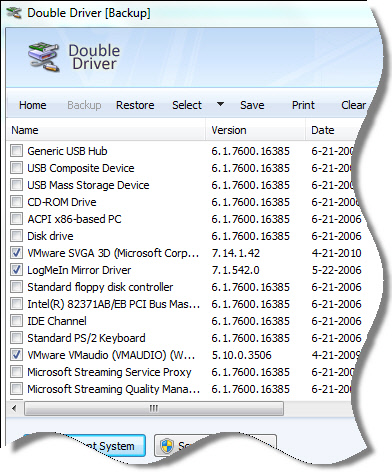
Click on Backup, and then “Scan Current System”. It will grab all of your current drivers.

Select all of the drivers you want to include, and press “Backup Now”

Pick your option for backup:
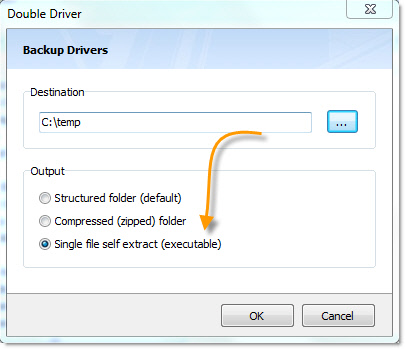
I like the self extracting exe – very easy to handle when I am in the middle of a format and reload.

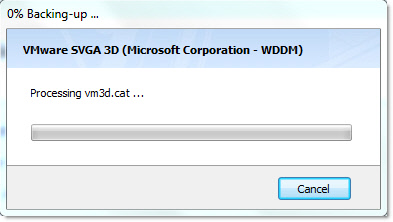
It will then quickly build your driver backup:
Best of all this utility is free, and can run right from a flash drive.

Extend Windows Server 2003 C Drive

Sooner or later the chances of encountering a Windows based system that is exhausting its free space on C: are pretty good. After years of Windows patching, application updates, etc, even a system that started with a healthy amount of free space on C: can find itself running low. If you happen to be in a virtualized environment you have some good, semi non-disruptive options to resolve this issue.

In the "old days" when the C drive was carved out of physical disk, the only option was to backup the system, repartition, reformat, reinstall, and restore the system(maybe there are/were some advanced partitioning managers that could do this much more simply?). A very lengthy, disruptive and risky operation. With the advent of Windows 7 and Server 2008 R2 (maybe Vista/Server 2008?) Microsoft built in the very handy feature of extending the C: drive live while the system is running - very cool indeed! As long as you have some available space to add, it is a zero downtime operation on those operating systems.

Back to Windows 2000 and 2003. I recently had some Server 2003 virtual machines that have been in service long enough to start running low on C drive space. All the (conservative) cleanup I could muster wasn't going recover enough space for the long haul. If you turn to Google you'll find several ways to accomplish extending the C drive - here I offer what I though was one of the most straight forward and conservative(safe) methods in a VMware environment.

Preparation Steps
  • Get a good backup of the system to be modified (you already regularly do this though - right?)
  • Have a "Helper" Windows 2003 or newer virtual machine you can power on / off without disrupting user services. This system will need access to the vmdk to be extended.
  • Make sure you have free disk space on the vmfs/nas volume to extend your C drive.
  • Downtime required - although minimal it must be planned accordingly
HowTo
  • Backup, Backup, Backup the original system
  • Shutdown the original System
  • Edit the Virtual Machine's properties and adjust the disk size to the total desired capacity
  • In the Helper Virtual Machine
  • Add the existing, newly extended drive as a new hard drive device
  • Boot up the Helper Virtual Machine
  • Fire up diskpart, execute list volume
  • Execute select volume # where # is the volume number to be extended
  • Execute extend, then exit
  • Shutdown the Helper Virtual Machine and remove the disk device configuration from it (but don't delete the VMDK!)
  • Boot up the original system
  • You may see a checkdisk run - this is OK
  • You may get the "New hardware install please reboot" prompt, go ahead and reboot
  • The system will now have a larger C drive!
This method appealed to me for following key reasons:
  1. Uses Windows native tools to modify Windows partitions.
  2. No copying of data from one disk to another.
  3. It's relatively quick. This can manually be done in around 15 minutes(excluding the backup time).
One potential downside stems from a VMware technical matter. For those who might think: "I'll take a snapshot of my virtual machine before messing with its disk size", you'll quickly notice the VMDK size can not be altered when a snapshot is present. If you are looking to the concept of "Snapshot" as a quick fall-back option, you'll have to get that from your storage or backup solution.

If all failed, you can also use the Gparted Live CD to boot up and configure the hard drive partition (extend, delete, configure, etc.)
http://gparted.sourceforge.net/download.php

Export users from Active Directory – Free Tool

I have an Active Directory Domain that has lots of user accounts, under many organizational units. I wanted to find an easy way to see all of the user accounts within the domain.

My friend Matt told me about this free tool called DumpSec from SystemTools.com

When you first launch the app it defaults to the local system (You can use this tool for local computer security info too btw). I wanted it to export information about the domain, so I had to change it to look at the domain controller instead.

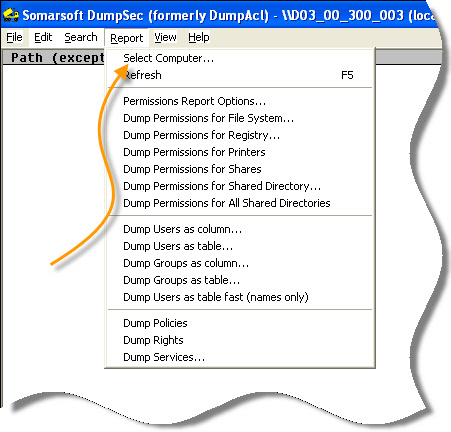
You can do this by clicking on the reports menu within the app, and the pick then option that says “Select Computer”

Select Computer

Then type in the host name of one of your domain controllers.

Once it is connected, you can click that reports tab again and pick what you want to export. It can export:

-File system permissions
-Registry permissions
-Printer permissions
-Share permissions
-A shared directories permissions
-All shared directories permissions
-Groups
-Users
-Policies
-Rights
-Servers

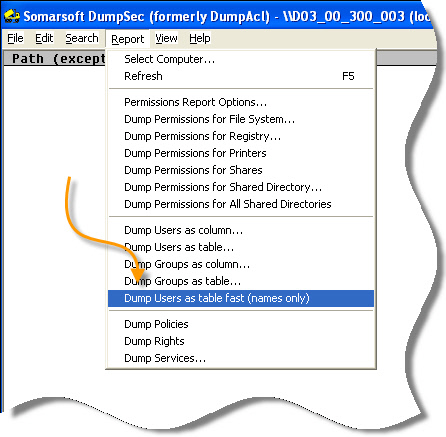
For me, I just needed a current list of users. I picked the fast option:

Dump Users

Within a few seconds I had a complete list of users on my domain, and the program allowed me to easily save it to a text file.

A great free tool – if you need to audit permissions on your domain I highly recommend it.

Download a copy of it from here:

SystemTools.Com DumpSec Download