Tuesday, November 17, 2009

Make Writing Documentation 101% Easier With ScreenSteps

certainly is.

Make Writing Documentation 101% Easier With ScreenSteps

ScreenstepsIn my consulting work and product creation I have to write a LOT of step by step instructions.

When creating these instructions you basically have two choices:

  1. Use a video screen capture tool to make a walk-through, edit the video down, add voice over, convert to a usable video size and format, upload or send to client.
  2. Create a document using screen grabs, annotate with explanatory text, compile into a PDF, send to client or upload

For the first case I use a Mac application called ScreenFlow, while PC users will likely have heard of Camtasia. These work fine for video, where video is warranted and when you have the time and quiet to do this.

The second though becomes a laborious task. It is necessary to do lots of fiddly little activities, and switch between multiple applications.

That is where ScreenSteps comes in. What it does is enable you to be far more productive with the step by step instruction process, either using the built in tools (all the way from capturing images, adding arrows and annotations, through to exporting as PDF), or by integrating with your favorite applications.

You might think that integrating with your existing tools goes counter to what I just said about it removing task switching, but in fact this app does something very cool and forehead-slappingly obvious that I can not believe I did not already have a utility that does it.

What it does is watches your clipboard and any time you add an image to the clipboard it pastes it into the step by step workflow that you are creating. Once you are done you can stop this “recording” and then go through adding instructions and anything else that needs to be clarified. At the end you can export as Word to finish the document editing part, rather than send directly to a finished PDF.

You can even create your own templates to further automate the process.

There is a free trial, after which you need to buy either

  • ScreenSteps Standard: $39.95 per user
  • ScreenSteps Pro: $79.95 per user

I think it is a bargain considering all the time I will save.

See below for an example that I just exported:

Example

Freelancer’s Hyper-Drive: 131 Productivity Boosters for Email, Instant Messaging, Word, Excel, and More

Freelancers often have to wear many hats: accountant, boss, quality control, marketing department, and beyond, which can leave you feeling like there’s just not enough time in the day to do everything you’d like. Fortunately, there are a number of tools designed to help you speed up the process of working. Check out these productivity boosters for documents, communications, and more.

Email

Email itself is a productivity tool, but it often turns into a monster task that must be tackled. These tools will help you tame your inbox.

  1. ClearContext: If you have a hard time getting through email you’d rather ignore to get to the good stuff, ClearContext is about to make your life a lot easier. This information management system prioritizes your email, organizing it and assigning color codes. You’ll be able to identify your most important senders and let newsletters or less important senders get pushed down below your VIPs.
  2. Mail Templates: If you often reply to a number of emails on on the same few subjects, consider creating template responses for each one. You’ll save time and be consistent.
  3. copy2calendar: Appointment setting doesn’t have to be a time consuming process. With copy2calendar, you can automatically convert text containing appointment information into calendar entries.
  4. Actioneer: Use actioneer to speed up your Outlook actions like appointments, tasks, contacts, and mail messages.
  5. TimeToMeet: Arrange meetings quickly in Google, iCal, or Outlook using this easy program.
  6. Conversation Preview: Gmail users can view the first few lines of an email with Conversation Preview, even while they’re still in the message list view.
  7. iGTD: Mac users can take advantage of iGTD, a tool that organizes tasks straight out of your inbox and saves a link to the original email.
  8. CSV Exporter: Use CSV Exporter to import your address book contacts into Gmail.
  9. FlipMail: For email on the go, sign up with Teleflip’s FlipMail, a service that forwards email as a text message to your phone.
  10. Chilibase: Don’t spend 20 minutes trying to find that email Bob sent a month ago. Use Chilibase to see complete conversations from your contacts with a single click.
  11. l8r: If you’re working at 2AM but prefer that your client thinks you keep normal hours, you can use l8r to delay sending messages until a specified time. You can also use it to schedule emails that you know you’ll send, like reminders.
  12. SpamSieve: No one likes spam, especially when you have to wade through it to get to important emails. Combat this junk mail with SpamSieve, a program that zaps spam out of your inbox.
  13. Copernic Summarizer: If you find yourself wishing that your email correspondents would just get to the point, Copernic can lend you a helping hand. This tool summarizes mail messages and other documents, highlighting key concepts and sentences.
  14. Saved Searches: Check out this user script that allows you to save searches you’ll need to access frequently.
  15. Gmail Loader: If you’ve switched to Gmail, but still need to access your archives without going back and forth to your old email provider, check out Gmail Loader. It imports existing emails to your Gmail inbox so you’ll have easy access.
  16. Office Outlook Forum: Get quick answers to your pressing Outlook questions on this forum.
  17. emailStripper: To quickly get rid of email clutter that accumulates in long back-and-forth conversations, use emailStripper. Just paste your email into the tool, and it will clean up all extraneous characters.
  18. MailTags 2.0: This plugin for Mail.app allows you to add keywords and notes to your messages for quick retrieval.
  19. GmailThis: Send web pages quickly to anyone using GmailThis. The tool makes it easy to instantly send a message with a URL attached through Gmail.
  20. Getting Things Done Add-in: Productivity Leader David Allen has created an add-in that allows you to better accomplish his recommended workflow methodology.
  21. Microsoft Office Outlook Team Blog: Find out how to improve formatting, get rid of junk mail, organize, and more by reading the MSDN Outlook blog.
  22. Gmail Manager Add-on: Firefox users can take advantage of this Gmail add-on that displays email data at the bottom of your browser. This tool can show information from multiple Gmail accounts and is easy to customize.
  23. 10 Minute Mail: Save your real email for clients and other important people with 10 Minute Mail. This service allows you to sign up for a temporary email address that’s great for forums and other sign up forms that you think might sell your address to spammers.
  24. AmikaFreedom: Receiving email on your mobile device is convenient, but sometimes, you’re hit with an information overload. Use AmikaFreedom to trigger emails to forward to your wireless device when specified key words and phrases are used.
  25. Destroy beacons: Beacons are small images embedded in spam emails that, when downloaded by your email client, let spammers know they’ve got a hit. Avoid advertising your email in this way by blocking images from anyone not in your address book.
  26. Take Back Your Life Add-in: Get organized with templates, appointment prompts, and more functionality tools from Sally McGhee.
  27. Fuser: Use Fuser to consolidate your email accounts into one central place.
  28. ActiveWords: If you hate switching back and forth from Word to Outlook just to look up a contact, you’ll love ActiveWords. This tool makes Outlook “hot” in any Windows application, which allows you to look up contacts from a number of different programs.

Instant Messaging

IMs are a convenient communication tool, and there are a number of ways to improve their functionality. Read on to find out how you can share documents, schedule meetings, and send SMS messages using IMs.

  1. Acronyms: Use texting and chatroom acronyms to get your point across in fewer keystrokes. Of course, remember your audience: if you’re speaking to a client, you’ll need to tone down on the netspeak.
  2. Meebo: Share files with your contacts using Meebo’s IM.
  3. IMified: Access lots of web apps from one place using IMified.
  4. TodoBot: By setting up your own TodoBot, you can IM to do list items to yourself.
  5. Gaim: Use Gaim to chat on a number of instant messaging platforms at the same time.
  6. MyCyberTwin: Let a chatbot answer your IMs while you’re away.
  7. gTalk Sidebar: Firefox users can add on Google Talk as a sidebar, so you can chat while surfing web pages.
  8. AOL Mobile: With AOL Mobile, you can send a text message to SMS-enabled phones using the AOL Instant Messenger.
  9. Merge IM Contacts: Check out Lifehacker’s lowdown on how to get your AIM, MSN, Yahoo! and other contacts on Google Talk.

Word

For most users, Word is a fairly simple tool to use, but when you’re drowning in lots of documents, revisions, and lots of editing, it can be a mess. Clean it up with these Word boosters.

  1. Word Hyperlink Checker: Use this tool to make sure that all of the links in your Word document are active.
  2. Word Hotkeys: Check out this guide to find hotkey codes for common tasks.
  3. Boiler: Avoid excessive copying and pasting when combining Word files. Mesh multiple Word Files into one central file using Boiler.
  4. Save as PDF: With this tool, you can save any Word document as a PDF for easy reading.
  5. RapidoWrite: RapidoWrite makes it easy to cut down on repetitive text. Check it out for a good text replacement utility.
  6. Microsoft Office Word Team Blog: Check out the MSDN Word blog for tips, news, and more from Microsoft.
  7. Recover Lost Files: This guide offers tips for recovering Word files that would otherwise be lost forever.
  8. Fore Words Pro: Analyze your words for word echoes, differences, and more.
  9. Turn Off Word Features: For tips on how to turn off annoying and unnecessary Word features, be sure to take a look at this guide.
  10. Compare File Versions: If you’ve had someone edit your document, but they left you with no way to track their changes, you can find yourself spending a lot of time trying to find them. Use this tutorial to make comparing file versions a lot easier.
  11. Word Kit: Use Word Kit to produce frequently generated documents with ease and consistency.
  12. WordFast: Quickly translate text in Word using this handy tool.
  13. MS Works Converter: So your word processing file turned into more tabular data than you expected it to be? Not to worry, you can convert everything into an Excel file with this tool.
  14. Speed up Word: Word often loads lots of templates and add-ins that you may not need, which slows down the program. Read this tutorial from Lifehacker to find out how to stop them.
  15. Wordware: Wordware’s productivity pack has 45 tools designed to help you save time when using Word.
  16. AutoSummarize: If you need to summarize a large amount of text, don’t go through the tedium of reading it yourself. Check out this tutorial on how to use AutoSummarize to highlight key points.
  17. SumsBox-W: Improve Word’s number and tables functions with this handy tool.
  18. Docx Converter: So your client has Word 2007 and has started sending you .docx files that are incompatible with your Word version. Make them readable by using the Docx Converter.

Excel

Excel is a great tool for wrangling lots of data into one convenient place, but it can get out of hand. Find out how to streamline your spreadsheets, create easier graphs, and find time-saving templates with these tools.

  1. Daily Dose of Excel: Check out Dick Kusleika’s Daily Dose of Excel for help with formulas, functions, and lots more.
  2. Mr. Excel: Bill Jelen, Mr. Excel, has over 18 years of spreadsheet experience, and he’s more than willing to help you figure out how to better use Excel.
  3. Marketing Charts: Download Excel spreadsheet templates and marketing charts with this resource.
  4. Copy Text to Multiple Worksheets: Find out how to copy text from one worksheet to many others in this answer thread.
  5. Conditional Formatting: Formatting in Excel is a great way to make data easier on the eyes and highlight important information, but it’s a lot of work. Find out how to set up conditional formatting to make the entire process automated.
  6. ASAP Utilities: Use ASAP Utilities to automate frequently used tasks in Excel.
  7. Excel Forum: If you need help using Excel, check out these forums for information on worksheet functions, programming, and more.
  8. Excel Keystrokes: Save yourself some time and the perils of carpal tunnel syndrome by checking out these easy Excel keystrokes.
  9. Nuts About Microsoft Excel: On this blog, you’ll find loads of tips and solutions for MS Excel.
  10. Excel AutoFilter: Use AutoFilter to sort by selected criteria without changing any data.
  11. Dual Excel Worksheets: Find out how to view two Excel worksheets at once at Digital Streets.
  12. Excel Templates: Save yourself loads of time by using these Excel templates instead of starting from scratch.
  13. Excel In-cell Graphs: Check out this link for a tutorial on how to easily create a bar graph inside Excel cells.
  14. Excel Split Views: Read this tutorial to find out how to split your Excel screen so that you can view and edit two different areas at once.
  15. Excel Gantt Charting: Turn Excel into project management software using this tempate from David Seah.
  16. ExcelUser: On ExcelUser, find Excel news and tips, create Excel Dashboards, and learn how to better use Excel in your business.
  17. Excel Experts: If you’re in need of an Excel Expert, check out this directory.
  18. Microsoft Excel: Check out the Microsoft Excel blog for beta news, improvements, and more.

PDF

PDF is a versatile, functional document format that offers more than meets the eye. Find out how to save time and stretch your PDFs to the limit with these resources.

  1. PDF Converter Professional: Streamline your data input from clients by creating fillable PDF forms with this tool.
  2. Combine PDFs: You can use Adobe’s Insert Page tool to combine PDF files, but if you’ve got a few to do, that can prove to be time consuming. Instead, use this tool to merge multiple PDF files into one with a few easy clicks.
  3. Sumatra PDF Viewer: For a lighter, faster PDF viewer than Adobe Reader, check out Sumatra.
  4. PDF Download: If your clients send you a lot of PDF documents, you probably have to figure out how to deal with them on a regular basis. Using PDF Download, you can specify how Firefox downloads these files.
  5. Adobe Reader 8 Optimization: Get Adobe Reader 8 to boot up faster by following this tutorial.
  6. Skim: Take notes on your PDF file as you read it using Skim. Some features include highlighting, circling, and more. You’ll also be able to see your notations and jump to them more easily.
  7. PDFill PDF Editor: This utility corrals lots of common PDF manipulation actions into one easy interface.
  8. ScanR: Snap photos and turn them into emailable PDFs using ScanR.
  9. Adobe Reader SpeedUp: Adobe Reader is known for its slow load times due to unnecessary plugins. Use Adobe Reader SpeedUp to selectively remove plugins that you don’t need.
  10. Notepad Generator: Create personalized PDF notepaper that you can print out and take to meetings using this generator.
  11. PDF to Image Converter: If your client can’t quite grasp the concept of downloading Adobe Reader, save yourself the time you’ll need to explain it, and just use this tool to send them an image file instead.
  12. Shoka: Corral all of your PDFs in this library manager. This tool makes it quick and easy to search, share, and tag your PDF documents.
  13. PDFCreator: Don’t spend time finding ink and paper when you can just print to PDF. Use the PDFCreator to print PDF files from just about any Windows application.
  14. RSS 2 PDF: Take your RSS newsfeeds offline by converting them to PDF that you can read at your convenience.

Phone & Text

The phone may seem like a tool that operates more slowly than its digital counterparts, but it has a number of time-saving tricks to offer, too. Use phone and text messaging to budget, take notes, navigate traffic, and more, all on the fly.

  1. Reminders: Set up reminder messages that arrive on your phone at a scheduled time.
  2. Expense Tracker: Read this guide to find out how to use K7.net’s free voicemail to send yourself messages for expense tracking.
  3. Yahoo! Mobile: Don’t go searching around for your phone to send a text message–just send one using Yahoo! Mobile.
  4. YouTube Mobile: Share videos on YouTube on the go by using YouTube Mobile to upload via your cell phone.
  5. Pinger: Forgot to send an email? Don’t worry, you can send an audio email message to your recipient instead using Pinger.
  6. MoneyManager: Track transactions on your phone with MoneyManager. Reports can be generated and sent to your email.
  7. Yahoo! Local: Don’t worry about taking the time to print or write out directions from Yahoo!–just send them as a text message to your phone.
  8. Popularity Dialer: If you know your client meeting is going to run long but you have things to do, you can use Popularity Dialer to schedule a call to your cell phone that will allow you to excuse yourself.
  9. The Traffic Line: Call the Traffic Line to find out what traffic is like in your area so you’ll never be late again.
  10. CallBurner: If you need to keep audio records of your Skype conversations, it’s easy to do it with CallBurner. Using this tool, you’ll be able to go back and review what you’ve said without having to do a lot of work.
  11. Disable Skype Notifications: Check out this guide to find out how to keep Skype messages and notifications from popping up constantly.
  12. CallWave: With CallWave, your voicemails are transcribed, highlighting only the key information.
  13. Jott: Send yourself a note by recording a message with Jott. The service will transcribe your voice into text and email it to you.
  14. SmartCam: If you need to use video chat, but don’t have a webcam, you can turn your Smartphone into one.
  15. Dodgeball: Assure your clients that you’re on the way to your meeting by broadcasting your location via Dodgeball.
  16. Dial DIR-ECT-IONS: Dial this number, and you can get a text message on our phone with driving directions.
  17. Blog From Your Cell Phone: Send a text or photo SMS to go@blogger.com, and you’ll be able to make posts to your blog.
  18. Google info: Send Google a text message to find listings, dictionary definitions, and more.
  19. Skylook: With this Outlook extension, you can record calls, get text alerts, voicemail in your inbox, reminders to your phone, and much more.
  20. Pickle: Share videos and photos with clients using your phone and Pickle’s service. You’ll just send your files to a special email address and it will publish them to sites like MySpace, Blogger, or your own site.

Other

Check out these tools to find even more boosters for documents, travel, collaboration, and more.

  1. AutoHotKey: Using AutoHotKey, you can turn any block of text or keystroke sequence into a hotkey that will perform repetitive tasks.
  2. Google Presentation: Google’s answer to PowerPoint makes it easy to do simple manipulations of PowerPoint files without actually firing up the program.
  3. Delivery Intercept: Control what happens to your package once it leaves your hands with this feature from UPS.
  4. Ditto: Corral your copy-and-paste function with this handy clipboard manager.
  5. TripIt: For entrepreneurs on the go, check out TripIt, a tool that automativally organizes your travel itinerary using email.
  6. Guide to Hotkeys: Hotkeys are keyboard shortcuts that allow you to execute an action without using your mouse. This guide has hotkeys for email, messaging, file management, and more.
  7. Audio Documents: Learn how to record written documents to audio for “reading” on the go with this tutorial.
  8. Mango: If you need to learn a foreign language, but don’t have time to hit the books, check out Mango for courses in conversational language.
  9. DocuFarm: This Firefox add-on makes it quick and easy to preview documents in your browser without having to take the time to open up a new program.
  10. QuickLogger: Keep track of your workday by logging tasks into QuickLogger.
  11. Scriblink: Collaborate with others on a digital whiteboard with Scriblink.
  12. Mini Map Sidebar: If you’re reading an email invite to a meeting, but have no idea how to get there, you can fire up the Mini Map Sidebar to map addresses and get directions without ever leaving your browser’s email client.
  13. Google Alerts: Keep track of your online reputation, favorite news items, and anything else you regularly check online by setting a Google Alert. You’ll be notified of any new pages that include your key words.
  14. Backpack: This productivity tool has lots of great features, including the ability to send scheduled or unscheduled reminders to email, SMS, or both.
  15. Snapter: With Snapter, you can scan photos of business cards and documents using your digital camera.
  16. Airport Parking Reservations: If you’re always getting to the airport at the very last moment possible, check out this service so you’ll save time parking.
  17. Virtual Folders: If you’re using Vista and find yourself often searching your machine for the same thing, you can save your search results as a virtual folder. Find out how here.
  18. FileTaxes: Who needs an accountant? File taxes for your employees on this site, and the service will generate forms, submit them to the IRS, and mail them to recipients for you.
  19. Office Jargon: Check out this handy guide to office jargon from Lifehacker and Brazen Careerist to spend less time trying to figure out what in the world your corporate clients are talking about.
  20. Digital Filing System: Read this tutorial to find out how to take your filing system online, creating a time saving, easily searchable database.
  21. Online Sign Off: Streamline your document approval process by taking it online with this service.
  22. Mailbox Map: Don’t spend time searching for a mailbox–just check out Mailbox Maps, a tool that finds nearby mailboxes and provides pickup information on each one.
  23. Windows Keyboard Shortcut of the Day: For time-saving keyboard shortcuts, check out this ongoing blog.
  24. Monkey On Your Back: Remind coworkers and clients of deadlines using Monkey On Your Back, a tool that sends scheduled email reminders to others.

The Freelancer’s Toolset: 100 Web Apps for Everything You Will Possibly Need

Running a business for yourself means you have to be inventive and always on the lookout for a new and better way to get things done. Innovation junkies, take note: the Internet has a lot to offer. From invoicing to marketing, these are tools that freelancers need to know about.

Organization

If you’re busy with lots of client work, it’s easy for things to get out of hand. Don’t let your work get away from you; organize information and projects with these tools.

  1. Backpack: Get your projects organized by using Backpack. Create to-do lists, notes, files, images and a calendar with reminders that can be sent via email or to your mobile device.
  2. Central Desktop: Collaborate, communicate and share files with clients and coworkers using Central Desktop.
  3. iOrganize: With iOrganize, freelancers can organize work by keeping notes, ideas and bookmarks in one place.
  4. Viapoint: Viapoint makes it easy for freelancers to store emails and files by client or project.
  5. Stikkit: Use Stikkit’s “little yellow notes that think” to keep in touch, plan and collaborate with clients and coworkers.
  6. Webnote: Webnote users can take notes using a web browser, then save and return to the notes on any computer. This is especially helpful if you’re working on-site with a client and have to use a computer other than your own.
  7. Netvibes: Spend less time searching and more time working by customizing your browser’s start page with email, feeds, messaging, job boards and much, much more.

Calendars & To-Do Lists

Client meetings, important events and a never-ending list of things to do can wear you down if you can’t make them manageable. Use these handy calendars and to-do lists to keep your schedule from taking over your business.

  1. Remember The Milk: Remember The Milk reminds you to take care of important tasks, so you’ll never forget when a project is due.
  2. CalendarHub: Use CalendarHub’s web-based calendar to keep track of deadlines and set goals for your business.
  3. Google Calendar: Google Calendar is a web based tool that allows users to organize their schedule, so you’ll always know exactly what you need to be working on.
  4. Planzo: Planzo’s online calendar keeps freelancers connected to events and things to do. It lets you share your events just about anywhere, get a daily digest and receive text message reminders.
  5. Spongecell: Spongecell is an online calendar made for freelancers with lots of meetings and engagements. Plan events, spread the word and allow guests to add content to your calendar.
  6. Neptune: Neptune’s web based to do list tool helps you keep track of the things you need to take care of every day. It lets you email yourself new tasks, get an email report every morning and upload files to store with your projects.
  7. Ta-da List: When you’re busy with lots of projects, it can be hard to keep track of what you’ve accomplished. Make web-based ta-da lists for yourself or other people, then share them and check items off as you go.

Your Money

Money is what keeps your freelance business going, but managing it can be tedious and time consuming. Sure, it’s fun to see money come in, but does anyone really like sending out invoices? Use these tools to make the process of managing your income easier and more enjoyable.

  1. Wesabe: Use Wesabe to keep tabs on where the money in your business goes, helping you to make better financial decisions.
  2. InstaCalc: InstaCalc is a web based calculator with lots of bells and whistles including spreadsheet capabilities, unit conversions and programming commands. It’s great for freelancers because you can send clients links to any of your calculations, put a calculator on your website or create charts and graphs from your calculations.
  3. XE: If you’re working with an overseas client, you may need to handle foreign currencies. Use XE’s currency converter for accurate calculations with up-to-the-minute currency rates.
  4. Dimewise: Use Dimewise’s web-based convenience to manage your business transactions wherever you are.
  5. FreshBooks: FreshBooks offers a program for “painless billing,” so you’ll never have to spend hours sending client invoices out. Designed with service-based businesses in mind, this software provides a method to manage and send invoices, handle work orders and generate reports with ease.

Storage

Do you have too many client files clogging up your hard drive? Use these services to take a load off.

  1. openonmy: openonmy’s website offers storage for files up to 1GB. These files are made to be accessible from any computer, so you can open them up even when on-site with a client.
  2. Xdrive: Xdrive offers 5GB of online storage. Use their service to share files with your clients and coworkers.
  3. YouSendIt: Have you ever had to clean out your inbox just so you’d have room to send out an email? YouSendIt puts and end to that trouble by sending files up to 2GB to your clients.
  4. Flickr: Save space on your hard drive by uploading your photos to Flickr. It’s a great way to store, share and organize photos for your business.
  5. Box: Create an online file-sharing location for you and your clients on Box.
  6. MediaTemple: Keep your important client files safe on MediaTemple’s servers. They offer innovative hosting solutions for all kinds of websites.
  7. DivShare: Use DivShare’s file hosting service to email files to clients or store them in a folder for shared access later.

Project Management & Productivity

Do you wonder where all of your time goes? Do your clients want frequent status updates? Keep tabs on your time and projects with these tools.

  1. Harvest: Harvest offers web-based time tracking software with simplicity. Track your progress and inform your clients using Harvest’s reports.
  2. Side Job Track: Side Job Track, designed with freelancers in mind, provides software that lets you track and manage project information. Features include job tracking, invoicing and reporting.
  3. Basecamp: Basecamp offers a way to improve project communication. Use it to keep your teammates and clients informed about what’s going on with your projects.
  4. ConceptShare: ConceptShare provides online design collaboration. Invite clients and coworkers to view your design and make comments on your work.
  5. ProjectStat.us: Instead of fielding constant calls about the status of a project, let your customers view the status of their project online with ProjectStat.us.

Writing & Design Tools

Being creative can get expensive. Purchasing icons, stock photos, book publishing and the like can add up fast and eat into your profit margin. Check out these free and inexpensive tools designed to make the lives of freelance writers and designers cheaper and easier.

  1. Writeboard: Have you ever had a client or coworker revise a document and end up wiping out your work? Use Writeboard to share and collaborate while saving separate versions each step of the way.
  2. Lulu: Lulu gives fledgling writers an easy way to get published. Each product is printed as it’s ordered, so you don’t have to build an expensive inventory.
  3. MailBuild: Built for web designers, MailBuild allows users to set up a template for client email campaigns.
  4. MyFonts: Do you want to see how fonts will look on your design before committing to a purchase? MyFonts provides a source for trying out and buying new fonts.
  5. IconBuffet: Find and trade stock icons for your web designs on IconBuffet.
  6. stock.xchng: Add photos to your writing or web design at low or no cost. stock.xchng provides tons of stock photos, many of them royalty-free.
  7. Google Docs & Spreadsheets: Don’t bother spending hard-earned money for the latest version of MS Word. Create, upload, share and edit word and spreadsheet documents online using Google Docs & Spreadsheets.
  8. MorgueFile: MorgueFile’s high resolution photos are has-beens in the stock photography world, but that doesn’t mean they won’t do a great job spicing up your work.

Security & Privacy

Don’t let your work get stolen or compromised. Can you imagine how your business would suffer if you lost files due to a virus? Or worse, if the financial information of your clients got exposed to spyware? These services help you stay safe and secure.

  1. SpamSieve: Fighting spam takes time away from your business and opens your system up to intruders. Use SpamSieve to keep spam out of your Mac email client.
  2. Escrow: Don’t get burned by clients that make fraudulent payments. Use Escrow to protect yourself and your clients from payment fraud.
  3. Cloudmark Desktop: Cloudmark protects your Outlook inbox from spam, phishing and viruses, so you’ll never have to worry about compromising business files when reading your email.
  4. PayPal: Give your clients a way to pay without sharing their financial information by using PayPal.
  5. Moneybookers: Open your business to the worldwide market safely. Use Moneybookers for secure worldwide payment and acceptance.
  6. Spamato: Keep your business email secure by using Spamato with Outlook, Thunderbird or Mozilla Mail.
  7. Spybot Search & Destroy: Make sure your confidential client information is safe from prying eyes by scanning for spyware with Spybot Search & Destroy.
  8. AVG Anti-Virus Free Edition: Protect your business files with a good antivirus program. AVG Anti-Virus offers a free solution for protecting your computer from viruses.

Mobility & Contact

When running a business, it’s essential that you’re able to keep in contact with clients, vendors, coworkers and other important acquaintances. Use these tools to communicate with ease.

  1. Campfire: Campfire is a web-based chat tool that’s ideal for online meetings with clients or coworkers.
  2. Meebo: Don’t miss out on a client just because you don’t use the same instant messaging tool. Get access to every major messaging service on Meebo’s website without having to download anything.
  3. FaxZERO: Online communication is popular, but sometimes you just have to send a fax. But who wants to invest in a fax machine and phone line for something that happens only on a rare occasion? Instead, use FaxZERO to send a fax anywhere in the US or Canada for free.
  4. eBuddy: Don’t miss out on important messages while you’re away from your base of operations. Log on to eBuddy to sign on to online messengers using your mobile device.
  5. K7: FaxZERO lets you send out a fax for free online, but what if a client wants to fax something to you? Enlist the help of K7, a service that assigns users a phone number that accepts fax and voicemail messages, which are then sent to your email.
  6. GoToMeeting: Use GoToMeeting to keep in touch with clients and coworkers via online meetings.
  7. LogMeIn: Don’t let your business suffer because you can’t take your computer on the road. Use LogMeIn to get access to your computer’s desktop anywhere.

Marketing & Networking

You provide a great service and offer awesome rates, so why isn’t the world knocking down your door with business? Perhaps it’s because they have no idea you exist. Get your name out there and find new clients with these tools.

  1. LinkedIn: LinkedIn offers online networking at its best. Find opportunities and contacts based on your work and the people you already know.
  2. askCHARITY: Take advantage of askCHARITY’s database of key media contacts to get the word out about your business.
  3. Craigslist: Craigslist is an invaluable tool for any freelancer. Find clients, sell your work, buy supplies, network and more using Craigslist.
  4. Coroflot: Use Coroflot to post an online portfolio and find design jobs.
  5. ProfessionalOnTheWeb: ProfessionalOnTheWeb hosts a directory of portfolios. Make sure yours is there when clients search for help.
  6. Elance: Use Elance to get connected with clients that need your services on a project.
  7. 37signals Gig Board: Use the 37signals Gig Board to find freelance jobs in programming, design and more.
  8. WebProJobs: Find full-time and freelance web professional jobs on WebProJobs.
  9. Job Pile: Job Pile aggregates popular freelance job boards, so you can spend time working instead of searching.
  10. YouTube: Use YouTube’s viral video to get the word out about your creativity.
  11. CafePress: CafePress offers on-demand printing for promotional items as well as a place to sell your design.
  12. Spot Runner: Use Spot Runner to build a TV advertising campaign.

Business & Legal

Paperwork isn’t always fun, but it is necessary. Forms and agreements can provide legal protection and help you avoid disputes down the road. Check out these tools that help you protect yourself and spend less time on the boring stuff.

  1. MyNewCompany: Get legal and tax protection for your freelance business by making things official. Use MyNewCompany to incorporate or form an LLC online.
  2. Help Me Work: Get the stability of corporate life while still working as an independent consultant. Help Me Work takes care of taxes, client billing, paychecks, benefits, retirement plans and more.
  3. Designers Toolbox: Get set up with all the legal forms your design business may need with Designers Toolbox.
  4. Creative Commons: Use Creative Commons to specify how much or how little legal restrictions you want your work to carry.
  5. AIGA: Protect your business with AIGA’s standard form of agreement for design services.
  6. Nolo: If you’ve got a legal question about your business, head to Nolo. Experts there offer legal advice for independent contractors and consultants.
  7. Creative Public: Head to Creative Public for forms, contracts, pricing guides and more for your design business.

Client Contact & Feedback

Your clients are what keep you in business, so it’s important to check in with them and make sure they’re satisfied. Use these programs to keep in touch with your clients and find out what they have to say about your work.

  1. Breeze: Send out email campaigns to your clients with Breeze’s easy tool.
  2. Wufoo: Use Woofoo to make forms, surveys and invitations for your customers with ease.
  3. Relenta CRM: Keep track of customer relationships using email, contact, document and activity management with Relenta.
  4. Highrise: Don’t lose track of your customers: keep in touch with Highrise’s online contact management system.
  5. ScratchnScribble: Use ScratchnScribble’s service to have handwritten or printed greeting cards sent to your clients.

Website Tools

Clients are looking for your business online. Will you be there? Check out these applications to make sure your business has an excellent online presence.

  1. Big Cartel: Set up an online store to sell your products using Big Cartel’s service.
  2. WordPress: Blog about your business and industry with WordPress.
  3. Inblogit: If you’re a design professional, your blog should be attractive. Use Inblogit for blog functionality with more flexbility in design.
  4. Icebrrg: Create web forms with Icebrrg so that your website can generate customer inquiry and feedback.
  5. XHTMLized: If you’re too busy to build a website yourself, use XHTMLized. They take your design and turn it into a web page that is browser and search engine friendly.
  6. XHTMLiT: XHTMLit offers freelancers another time-saving solution for converting design into HTML.
  7. Userplane: Make your website interactive for your clients by bundling chat, messaging, video, search and live presence with Userplane.
  8. Ning: Let your clients network with each other by creating your own Ning social network.
  9. ExpressionEngine: Impress your customers by having a website with lots of features. Use ExpressionEngine to publish just about anything on your website.
  10. FlashDen: Build a great-looking website that your clients will want to visit. Buy Flash, audio, video and fonts to make your website look good at FlashDen.

Printing & Packaging

When your products look good, your business does too. Presentation makes a difference, so be sure to make a good impression by using these innovative printing and packaging tools.

  1. Jewelboxing: Impress your customers with Jewelboxing’s customized, professional-grade DVD and CD packages.
  2. Qoop: Qoop prints everything freelancers might need: business cards, apparel, promotional items, posters and more.
  3. Moo: Moo prints note cards and mini cards from your photos and design. These can be used for promotional materials or business cards.

Tools to Give & Take

These tools pack a double-whammy of functionality. Use them to get the resources you need or as an alternative revenue stream.

  1. Google AdWords: Use Google AdWords to advertise your business or make money by putting AdWords on your website.
  2. Prosper: Using Prosper’s people-to-people lending website, you can borrow money for business expenses from real people. If you have extra cash, use Prosper to earn interest by lending to others.
  3. Text Link Ads: Generate interest in your website and attract clients with Text Link Ads or earn money by selling space for others on your site.
  4. PayPerPost: Use PayPerPost to have a blogger write about your product or service. Alternately, you can earn money by writing about someone else’s business.
  5. Guruza: Find answers to your business questions or earn money by giving expert advice on Guruza.

Miscellaneous

From office suites to creative stimulation, these tools have a lot to offer for freelancers. Check out these applications that cover anything and everything else you might need for your business.

  1. Zoho: Zoho’s Office Suite includes a variety of software solutions for freelancers: a word processor, spreadsheet, presentation tool, wiki writer, notebook, project management, CRM solution, database creator, calendar, web conferencing, email and chat.
  2. Veetro: Veetro offers another all-in-one solution that specializes in the tools freelancers need the most. This program combines money, document, task and customer management with email marketing, reporting and blog publishing.
  3. Work: Are you clueless about what it takes to run a business in your industry? Work offers guides that show you how.
  4. Pandora: Get your creative juices flowing with Pandora’s fully customizable internet radio.

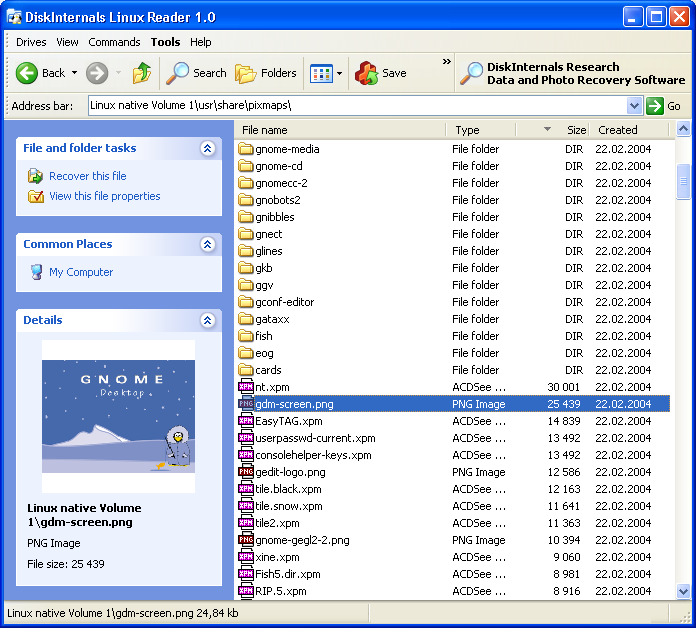
Freeware Linux Reader for Windows Get access to Linux files from Windows!

How to get safe and quick access to alternative file systems? DiskInternals Linux Reader is a new easy way to do this. This program plays the role of a bridge between your Windows and Ext2/Ext3 Linux file systems. This easy-to-use tool runs under Windows and allows you to browse Ext2/Ext3 Linux file systems and extract files from there.

There are a number of evident merits of the program, which you should know. First of all, DiskInternals Linux Reader is absolutely free. Secondly, the program provides for read-only access and does not allow you to make records in Ext2/Ext3 file system partitions. This guarantees that the interference in an alterative file system will not affect the work of Linux later. Apart from this, it is necessary to note, that it gives you an opportunity to use common Windows Explorer for extracting data. A preview option for pictures is one more pleasant point, which is worth mentioning.

How to get safe and quick access to Ext2/Ext3 Linux file systems? DiskInternals Linux Reader is an easy and short way to solve the problem!

While saving, it ignores file security policies. It means that it is possible to access absolutely any file on a Linux disk from Windows. The program can create and open images of Ext2/Ext3 disks.

Linux Reader is 100% FREE.

Try it now. You can download a full-featured freware version of DiskInternals Linux Reader for free.


Download Now